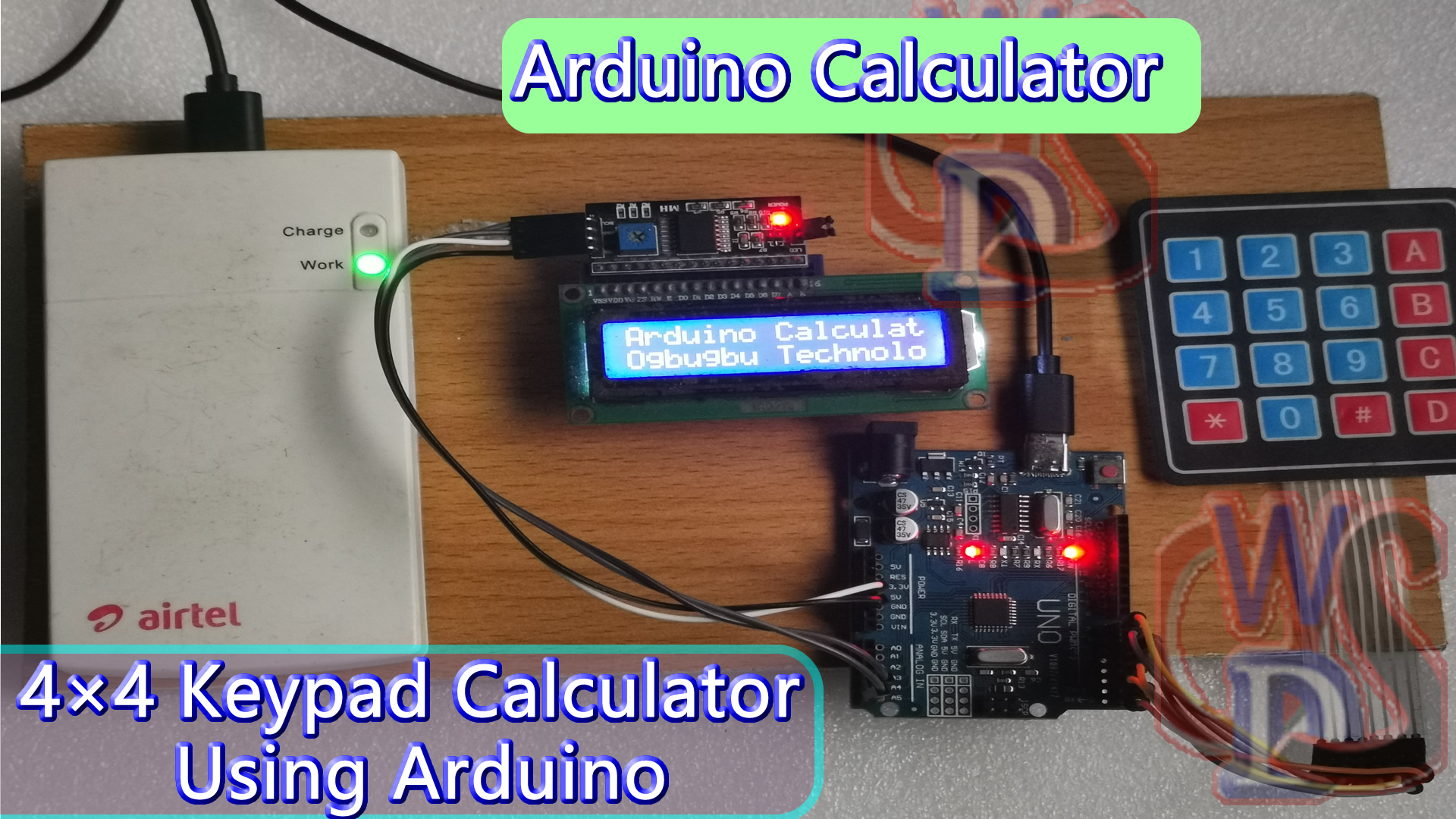
Programming is amazing to work and Arduino is an amazing platform if you are a beginner at embedded programming. We have previously built a Boolean Algebraic Calculator using Arduino. In this article, we will learn to make our own mathematical calculator using Arduino. The values can be put in using a keypad (4×4 keypad) and the result will be shown on an LCD screen (16×2 dot-matrix display). This calculator could be used to do simple operations like addition, subtraction, multiplication and division with whole numbers. But once you have understood the concept, you can implement scientific functions parallelly with Arduino’s built-in functions.
Video Explanation
When this project ends, you will learn to use a 16×2 LCD and keypad with Arduino and also know how easy it is to program using the already available Arduino IDE libraries. You will also get to know, how to program your Arduino to accomplish a specific task.
Project Circuit Diagram
Components Required
- Arduino Nano
- 16×2 LCD Display
- I2C LCD Module
- 4×4 Keypad
- Connection Wires
- Breadboard
- 5 Volt Power Supply
Circuit Connection for Arduino Calculator
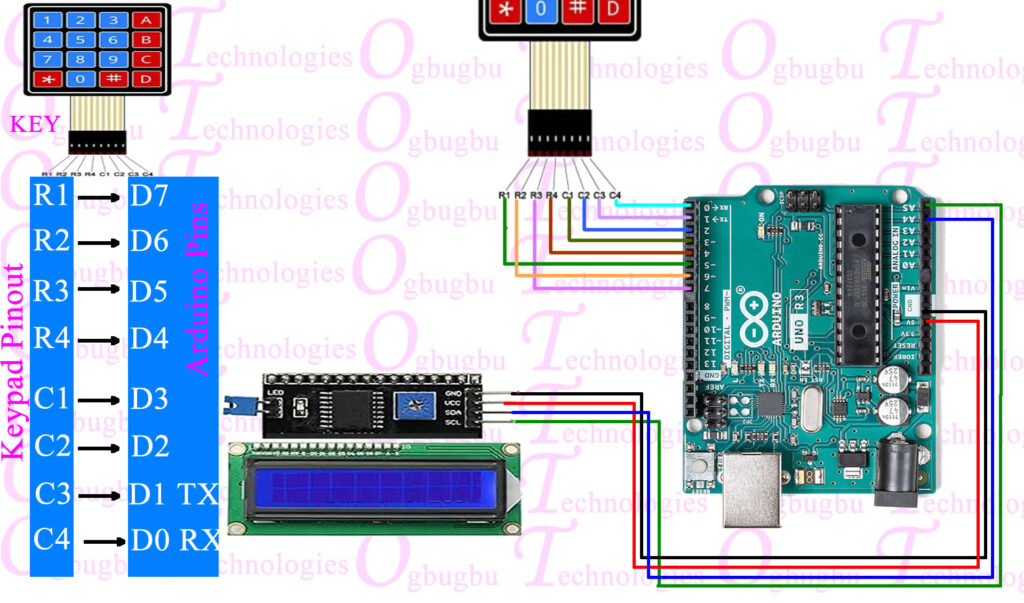
The complete circuit connection for this Arduino Calculator Project is shown above. The +5V and ground connection shown in the circuit diagram will be obtained from the 5V and ground pin of the Arduino. The Arduino will get its power from your laptop or through the DC jack which uses a 12V adapter or from a 9V battery.
We are running the LCD in a 4-bit system with Arduino so, only the last four data bits of the LCD are connected to Arduino. The keyboard has 8 output pins which we have to connect from pin 0 to pin 7 as mentioned in the diagram. You can also use the following connection table to recheck the connection with Arduino.
Some Arduino boards may show an error while uploading the program if there’s anything connected to pin 0 and pin 1, if you face any error just keep the keypad removed while uploading the program.
After your connections are done your hardware will be looking like this as mentioned shown below.
Working Principle of Arduino Calculator
| Keypad Buttons | Physical Image |
| {‘1′,’2′,’3′,’+’}, {‘4′,’5′,’6′,’-‘}, {‘7′,’8′,’9′,’*’}, {‘c’,’0′,’=’,’/’} | 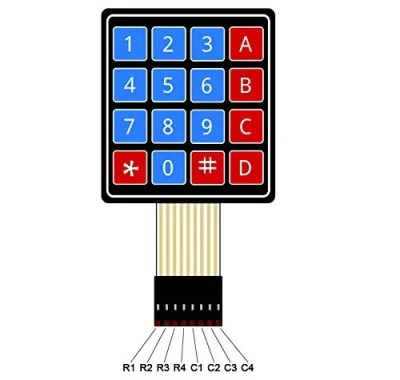 |
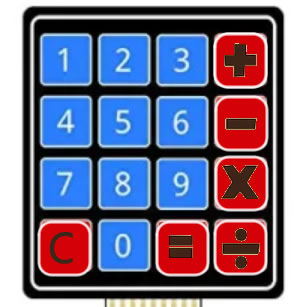
Link the connections according to the circuit diagram and upload the code mentioned below. If it’s showing an error cross check that you have added the library according to the instructions given above. You can also run the simulation to check if your hardware has any problems. If everything is okay as it’s supposed to be, then your project will be looking like this below with the LCD displaying this, as the keypad that we used here doesn’t have any specific markings on it, I have assumed the alphabet to be operated.
You should mark what each button actually represents, it will be much easier to interpret, after that’s done, you can directly start using the calculator. Type the number and it will appear on the second line, press the operand and type your second number finally press the “#” key to get the result.
Arduino Calculator Program
The complete Arduino program of this project is added at the end of this project. The code is divided into tiny meaningful pieces and is explained below.
As mentioned above, we gonna interface an LCD and keypad with Arduino using libraries. So first thing to do is add them to our Arduino IDE. The library for LCD is already included in your Arduino by default so we don’t need to worry about it. For the Keypad library tap the link to download it from GitHub. You will get a ZIP file, add lib to Arduino by Sketch -> Include Library -> Add. ZIP file and direct the location to this downloaded file. After that is done, we are all set and ready to program.
Even if we have used a library to use a keypad we have to mention a few important details (shown below) about the keypad to the Arduino. The variable “Rows” and “Cols” will let you know how many rows and columns our keypad has and the keymap shows the order in which the keys are set on the keyboard. The keypad, I am using in this project looks like this below the keymap also looks the same.
Further below we have mentioned to which pins the keypad is connected using the variable array “rowPins” and “colPins“.
Arduino Code
#include <Key.h>
#include <Keypad.h>
#include <Wire.h>
#include <hd44780.h>                       // main hd44780 header
#include <hd44780ioClass/hd44780_I2Cexp.h> // i2c expander i/o class header

//LCD I2C Initialization
hd44780_I2Cexp lcd; // declare lcd object: auto locate & config exapander chip
// LCD geometry
const int LCD_COLS = 16;
const int LCD_ROWS = 2;

double num1,num2 ;
double total;
char operation,button;
const byte ROWS = 4; // Four rows
const byte COLS = 4; // Three columns

// Define the Keymap
char keys[ROWS][COLS] = {
  {'1','2','3','+'},
  {'4','5','6','-'},
  {'7','8','9','*'},
  {'c','0','=','/'}
};
byte rowPins[ROWS] = { 7, 6, 5, 4 };// Connect keypad ROW0, ROW1, ROW2 and ROW3 to these Arduino pins.
byte colPins[COLS] = { 3, 2, 1, 0 }; // Connect keypad COL0, COL1 and COL2 to these Arduino pins.

Keypad kpd = Keypad( makeKeymap(keys), rowPins, colPins, ROWS, COLS ); //  Create the Keypad

void domath() // Simple switch case to pick what operation to do, based on button pressed by user.
{
  switch(operation)
  {
    case '+': // Addition
      total = num1+num2;
      break;
    case '-': // Subtraction
      total = num1-num2;
      break;
    case '/': // Division.
      total = num1/num2;
      break;
    case '*': // Multiplication
      total = num1*num2;
      break;
     case '%': // Modulus
      total = (int)num1%(int)num2;
      break;
  }
  // Based on case selected print our total and
  lcd.setCursor(0,1);
  lcd.print('=');
  lcd.setCursor(1,1);
  lcd.print(total);
}

void setup() {
int status;

  // initialize LCD with number of columns and rows:
  // hd44780 returns a status from begin() that can be used to determine if initalization failed.
  status = lcd.begin(LCD_COLS, LCD_ROWS);
  if(status) // non zero status means it was unsuccesful
  {
    status = -status; // convert negative status value to positive number

    // begin() failed so blink error code using the onboard LED if possible
    hd44780::fatalError(status); // does not return
  }

  // initalization was successful, the backlight should be on now

  // Print a message to the LCD
  lcd.print("Arduino Calculator");
  lcd.setCursor(0, 1);   // set the cursor to column 0, line 1
  lcd.print("Ogbugbu Technologies"); //Display a intro message
  delay(5000);
  lcd.clear();
  lcd.print("____");

}

void loop()
{
  // Loops are convenient for reading key press from keypad
  while(1) // First loop. Composing first number. Until operator pressed
  {
    button = kpd.getKey(); // Button read
    if (button >='0' && button <='9') // If user pressed numeric value, 1 character at a time.
    {
      lcd.clear();
      num1 = num1*10 + (button -'0'); //First operand composing
      lcd.setCursor(0,0); // Select first row on lcd
      lcd.print(num1); // Print current number1
    }

    //Inputting operator
    if (num1 !=0 && (button=='+' || button=='-' || button=='*' || button=='/' || button=='%'))
    {
      operation = button; // operation remembers what mathematical operation user wants on numbers
      lcd.setCursor(0,1); // set cursor to row 2
      lcd.print(operation); // print our operator
      break;
    }
  }

  while(1) // Second loop. Inputting second operand. Until '=' pressed
  {
    button = kpd.getKey(); // Button read
    if (button >='0' && button <='9') // Getting chars from keypad for second number
    {
      num2 = num2*10 + (button -'0'); //Second operand composing
      lcd.setCursor(1,1); // Select second row, second column on lcd
      lcd.print(num2); // Print current operand2
    }

    if (button == '=' && num2 !=0) //Do calculation if '=' is pressed
    {
      domath(); //Calls domath() subroutine
      break;
    }
  }

  while(1) // Clearing screen for next calculation
  {
    //Waits ‘=’ key to be pressed so it can reset program and start over.
    button = kpd.getKey();;
    if (button =='c')
    {
      lcd.clear();
      lcd.setCursor(0,0);
      num1=0;
      num2=0;
      total=0;
      operation=0;
      break;
    }
  }
}