The ESP32 microcontroller, combined with the ADXL345 accelerometer and an OLED display, creates a robust, battery-friendly, and fully connected step counter.1 This project goes beyond a simple local readout by utilizing the ESP32’s built-in Wi-Fi to host a web server, making the step data accessible and trackable from any device on the network.
🛠️ Components and Wiring
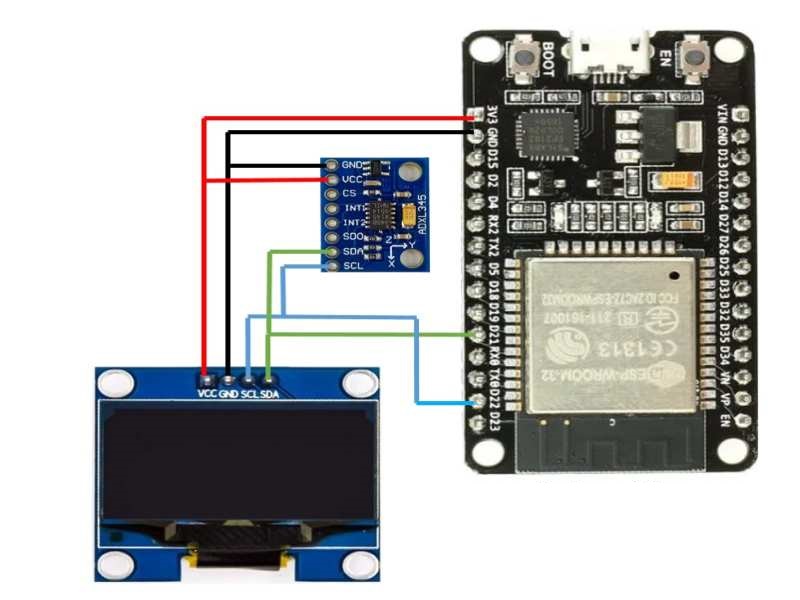
This system leverages the I²C (Inter-Integrated Circuit) protocol to connect both the sensor and the display to the ESP32 using just four common wires.
Key Hardware
- ESP32 Development Board: Provides processing power and essential Wi-Fi/Webserver capability.2
- ADXL345 3-Axis Accelerometer: Measures the acceleration data necessary for step detection.3 It uses the I²C address, typically 0x53.4
- 0.96″ SSD1306 OLED Display: A small, low-power display used for real-time, local visualization of the step count.5 It usually uses the I²C address 0x3C or 0x3D.
I²C Shared Bus Wiring
Since both the ADXL345 and the OLED are I²C devices, they can share the same data and clock lines, simplifying the wiring:6
| Component Pin | ESP32 GPIO Pin (I²C Default) | Function |
| ADXL345 VCC / OLED VCC | 3.3V | Power Supply |
| ADXL345 GND / OLED GND | GND | Ground |
| ADXL345 SDA / OLED SDA | GPIO 21 | Serial Data Line |
| ADXL345 SCL / OLED SCL | GPIO 22 | Serial Clock Line |
💻 Firmware: Code and Libraries
The project’s code structure involves three primary responsibilities managed by the ESP32:
1. Sensor Interfacing and Step Algorithm
- Libraries: Requires
Wire.h,Adafruit_Sensor.h, andAdafruit_ADXL345.hto read raw acceleration data. - Algorithm: The core logic calculates the acceleration magnitude (7$A_{mag}$) from the X, Y, and Z axes readings:
- The program then implements a peak detection method: a step is registered when $A_{mag}$ exceeds a calibrated threshold (e.g., $1.3g$) and then returns below it, combined with a debounce time (e.g., $300\text{ms}$) to avoid counting a single step multiple times.
2. Local Display (OLED)
- Libraries: Requires
Adafruit_GFX.handAdafruit_SSD1306.h. - Function: The OLED display provides immediate feedback.9 In the main loop, after a step is detected, the
stepCountvariable is incremented, and the display is updated to show the new value prominently, often cleared and refreshed at a modest rate to conserve power.
3. Webserver for Remote Tracking
- Libraries: Requires
WiFi.hand a web server library likeWebServer.horESPAsyncWebServer.h. - Functionality:
- Connection: The ESP32 connects to the local Wi-Fi network and prints its IP address to the serial monitor.
- Data Route (
/steps): The server registers a handler for a simple route, like/steps, which returns the currentstepCountas a plain text string. - HTML Page: A basic HTML page served at the root directory (
/) uses JavaScript to make continuous AJAX requests to the/stepsroute. This allows any device (phone, laptop, tablet) on the same network to view the step count in real-time without needing to refresh the entire page. - Reset Feature: A dedicated button on the HTML page or a separate route (
/reset) can be used to zero the step counter variable on the ESP32.
How it works?
Here is the step-by-step working of the project:
- The Adafruit ADXL345 accelerometer sensor continually detects acceleration data.
- When a significant change in acceleration is detected (indicating a step), the step count is increased.
- The current step count is presented in real-time on an Adafruit SSD1306 OLED screen.
- A web server is set up to provide remote access to the step count and offers the option to reset it.
- A debounce system avoids incorrect step detection by creating a delay between consecutive steps, ensuring precise step counting.
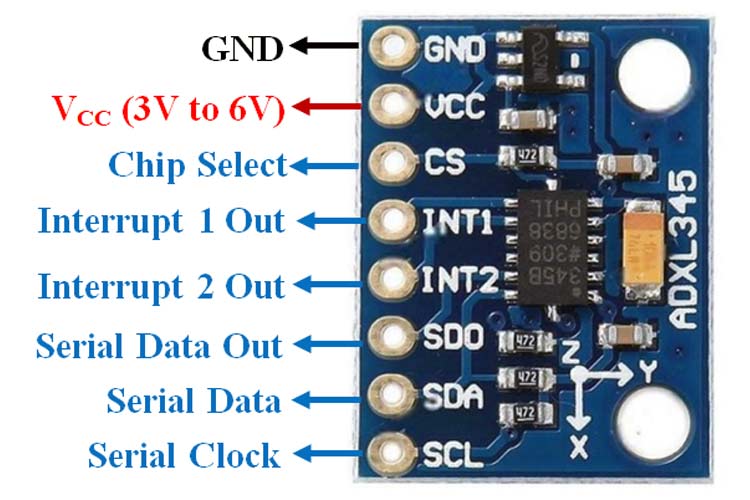
Pin Out of ADXL345 sensor
Circuit Diagram
🔋 Practical Considerations for Wearable Use
Since this device is designed to be a portable tracker, power management is crucial:
- 3.3V Operation: The ESP32 and both I²C peripherals (ADXL345 and OLED) operate at 3.3V, making direct, low-power interfacing straightforward.
- Power Optimization: Techniques like reducing the OLED update frequency and utilizing the ESP32’s Light Sleep or Deep Sleep modes (woken up by a motion interrupt from the ADXL345) can significantly extend battery life.11
This combination of onboard display and remote web access makes the ESP32 step counter a versatile and feature-rich IoT fitness project.
💻 Arduino Code Implementation
This sample code includes the basic structure for step counting, OLED display, and a simple web server.
Prerequisites
You must install the following libraries in your Arduino IDE:
- Adafruit ADXL345 (via Library Manager)
- Adafruit GFX (via Library Manager)
- Adafruit SSD1306 (via Library Manager)
The Arduino Sketch
#include <WiFi.h>
#include <WebServer.h>
#include <Adafruit_Sensor.h>
#include <Adafruit_ADXL345.h>
#include <Wire.h>
#include <Adafruit_GFX.h>
#include <Adafruit_SSD1306.h>

// --- Wi-Fi Credentials ---
const char* ssid = "YOUR_WIFI_SSID";
const char* password = "YOUR_WIFI_PASSWORD";

// --- Sensor and Display Setup ---
Adafruit_ADXL345 accel = Adafruit_ADXL345(12345); // Sensor ID is arbitrary
#define SCREEN_WIDTH 128 // OLED display width, in pixels
#define SCREEN_HEIGHT 64 // OLED display height, in pixels
#define OLED_RESET -1 // Reset pin (-1 if sharing Arduino reset pin)
Adafruit_SSD1306 display(SCREEN_WIDTH, SCREEN_HEIGHT, &Wire, OLED_RESET);

// --- Pedometer Variables ---
long stepCount = 0;
float accelerationMagnitude = 0;
// Threshold for step detection (Adjust this based on mounting location and sensitivity)
const float STEP_THRESHOLD = 1.3;
// Minimum time (in ms) between steps to prevent double counting
const long DEBOUNCE_TIME = 300;
unsigned long lastStepTime = 0;
bool currentlyAboveThreshold = false;

// --- Web Server Setup ---
WebServer server(80);

// --- Function Prototypes ---
void handleRoot();
void handleSteps();
void handleReset();
void updateOLED();
void connectToWiFi();

// =========================================================
// SETUP
// =========================================================

void setup() {
  Serial.begin(115200);

  // 1. Initialize ADXL345
  if (!accel.begin()) {
    Serial.println("Ooops, no ADXL345 detected ... Check your wiring!");
    while (1);
  }
  accel.setRange(ADXL345_RANGE_16_G); // Set to 16g range for better resolution

  // 2. Initialize OLED
  if(!display.begin(SSD1306_SWITCHCAPVCC, 0x3C)) { // Address 0x3C or 0x3D
    Serial.println(F("SSD1306 allocation failed"));
    for(;;);
  }
  display.clearDisplay();
  display.setTextSize(1);
  display.setTextColor(WHITE);
  display.setCursor(0,0);
  display.println("Connecting to WiFi...");
  display.display();

  // 3. Connect to WiFi
  connectToWiFi();

  // 4. Setup Webserver Routes
  server.on("/", handleRoot);
  server.on("/steps", handleSteps);
  server.on("/reset", handleReset);
  server.begin();
  Serial.println("HTTP server started");

  updateOLED(); // Initial display update
}

// =========================================================
// LOOP
// =========================================================

void loop() {
  server.handleClient(); // Handle incoming web requests

  sensors_event_t event;
  accel.getEvent(&event);

  // Calculate the magnitude of the acceleration vector
  accelerationMagnitude = sqrt(
    pow(event.acceleration.x, 2) +
    pow(event.acceleration.y, 2) +
    pow(event.acceleration.z, 2)
  );

  // Step Detection Logic
  if (accelerationMagnitude >= STEP_THRESHOLD && !currentlyAboveThreshold) {
    currentlyAboveThreshold = true;
  } else if (accelerationMagnitude < STEP_THRESHOLD && currentlyAboveThreshold) {
    // Registered a full cycle (peak detected)
    currentlyAboveThreshold = false;

    // Debounce check
    if (millis() - lastStepTime > DEBOUNCE_TIME) {
      stepCount++;
      lastStepTime = millis();
      updateOLED();
      Serial.print("Step Count: ");
      Serial.println(stepCount);
    }
  }

  delay(10); // Short delay for smoother execution
}

// =========================================================
// SUPPORT FUNCTIONS
// =========================================================

void connectToWiFi() {
  WiFi.begin(ssid, password);
  Serial.print("Connecting to WiFi...");
  while (WiFi.status() != WL_CONNECTED) {
    delay(500);
    Serial.print(".");
  }
  Serial.println();
  Serial.println("WiFi connected.");
  Serial.print("IP Address: ");
  Serial.println(WiFi.localIP());
}

void updateOLED() {
  display.clearDisplay();

  // Title
  display.setTextSize(1);
  display.setCursor(0, 0);
  display.println("--- Pedometer ---");

  // Step Count
  display.setTextSize(3);
  display.setCursor(0, 20);
  display.print(stepCount);

  // Label
  display.setTextSize(1);
  display.setCursor(90, 30);
  display.println("STEPS");

  // IP Address
  display.setTextSize(1);
  display.setCursor(0, 56);
  display.print("IP:");
  display.println(WiFi.localIP());

  display.display();
}

// =========================================================
// WEBSERVER HANDLERS
// =========================================================

void handleRoot() {
  String html = R"rawliteral(
    <!DOCTYPE html>
    <html>
    <head>
      <meta name="viewport" content="width=device-width, initial-scale=1">
      <title>Ogbugbu Technologies ESP32 Pedometer</title>
      <style>
        body { font-family: Arial, sans-serif; text-align: center; margin-top: 50px; }
        .container { border: 2px solid #333; padding: 20px; max-width: 400px; margin: auto; border-radius: 10px; }
        h1 { font-size: 4em; color: #4CAF50; }
        button { padding: 10px 20px; font-size: 1.2em; cursor: pointer; background-color: #f44336; color: white; border: none; border-radius: 5px; margin-top: 20px; }
      </style>
    </head>
    <body>
      <div class="container">
        <h2>Current Steps</h2>
        <h1 id="stepCount">0</h1>
        <button onclick="resetCounter()">Reset Steps</button>
      </div>
      <script>
        // Function to fetch the step count every second
        function fetchSteps() {
          fetch('/steps')
            .then(response => response.text())
            .then(data => {
              document.getElementById('stepCount').innerHTML = data;
            })
            .catch(error => console.error('Error fetching steps:', error));
        }

        // Function to reset the counter
        function resetCounter() {
          fetch('/reset')
            .then(response => {
              if (response.ok) {
                document.getElementById('stepCount').innerHTML = '0';
                alert('Step counter reset!');
              }
            })
            .catch(error => console.error('Error resetting counter:', error));
        }

        setInterval(fetchSteps, 1000); // Update every 1 second
        fetchSteps(); // Initial call
      </script>
    </body>
    </html>
  )rawliteral";
  server.send(200, "text/html", html);
}

void handleSteps() {
  // Send the current step count as plain text
  server.send(200, "text/plain", String(stepCount));
}

void handleReset() {
  stepCount = 0; // Reset the global counter variable
  updateOLED();  // Update the local display
  server.send(200, "text/plain", "Counter Reset");
}