This is a classic automation project. Using an ESP32 for this is great because its internal timers are very accurate, and it has plenty of power to drive both a display and a relay.
Since you’re using a relay, we’ll use a GPIO pin to trigger it and the I2C bus for the OLED (typically pins 21 and 22).
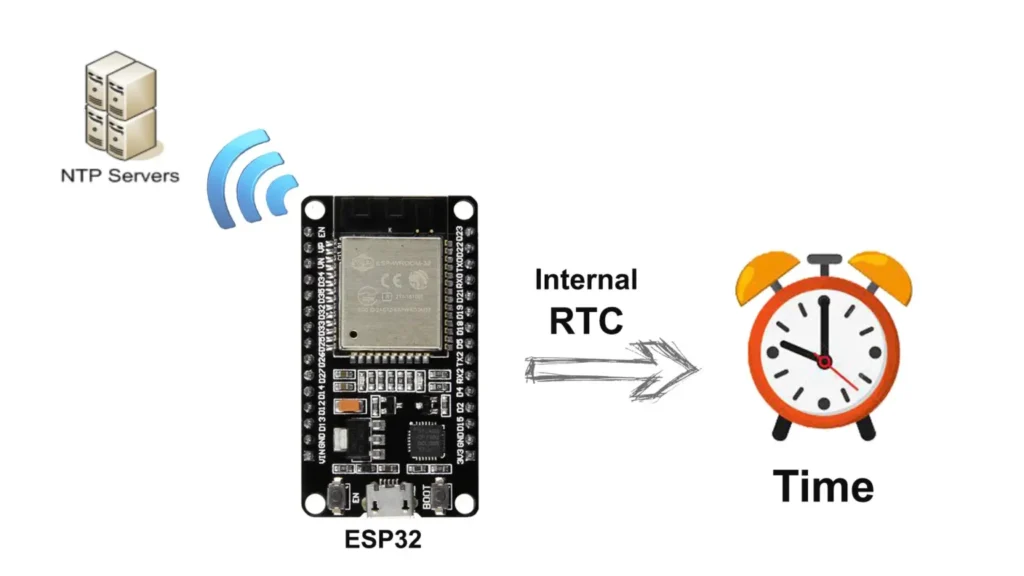
What is ESP32 internal RTC?
The ESP32’s internal RTC (Real-Time Clock) is a built-in feature that helps the device keep track of time even when it’s not connected to the internet or powered off. It’s like a tiny clock inside the ESP32 that runs independently.
Here’s how it works:
- Keeping time: The RTC keeps track of the current time, including hours, minutes, seconds, and even the date.
- Low power: It operates even when the main processor of the ESP32 is in sleep mode or powered off, consuming very little power.
- Accuracy: The RTC is relatively accurate and can maintain time over long periods, but it may need occasional adjustments to stay precise.
- Usage: Developers can utilize the internal RTC for various purposes like scheduling tasks, timestamping events, or triggering actions at specific times.
In summary, the ESP32’s internal RTC is like a mini clock that ensures your device knows what time it is, even when it’s not actively running.
In this article, I explained all the steps to make this ESP32 RTC home automation system, and how to fetch data from the NTP server.
In this ESP32 project, you can control the relay using ESP32 internal RTC, so you don’t need a Wi-Fi connection all the time.
Required Components for ESP32 Project:
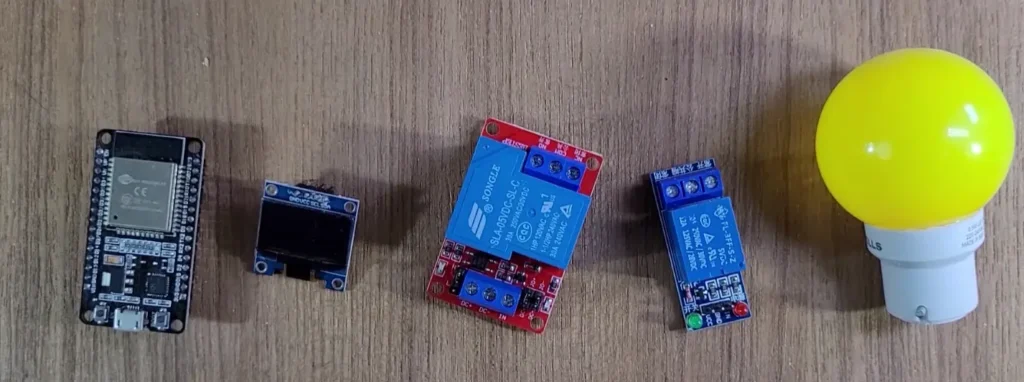
- ESP32 DevKIT V1
- 1-channel 5V SPDT Relay Module
- OLED
- Switches
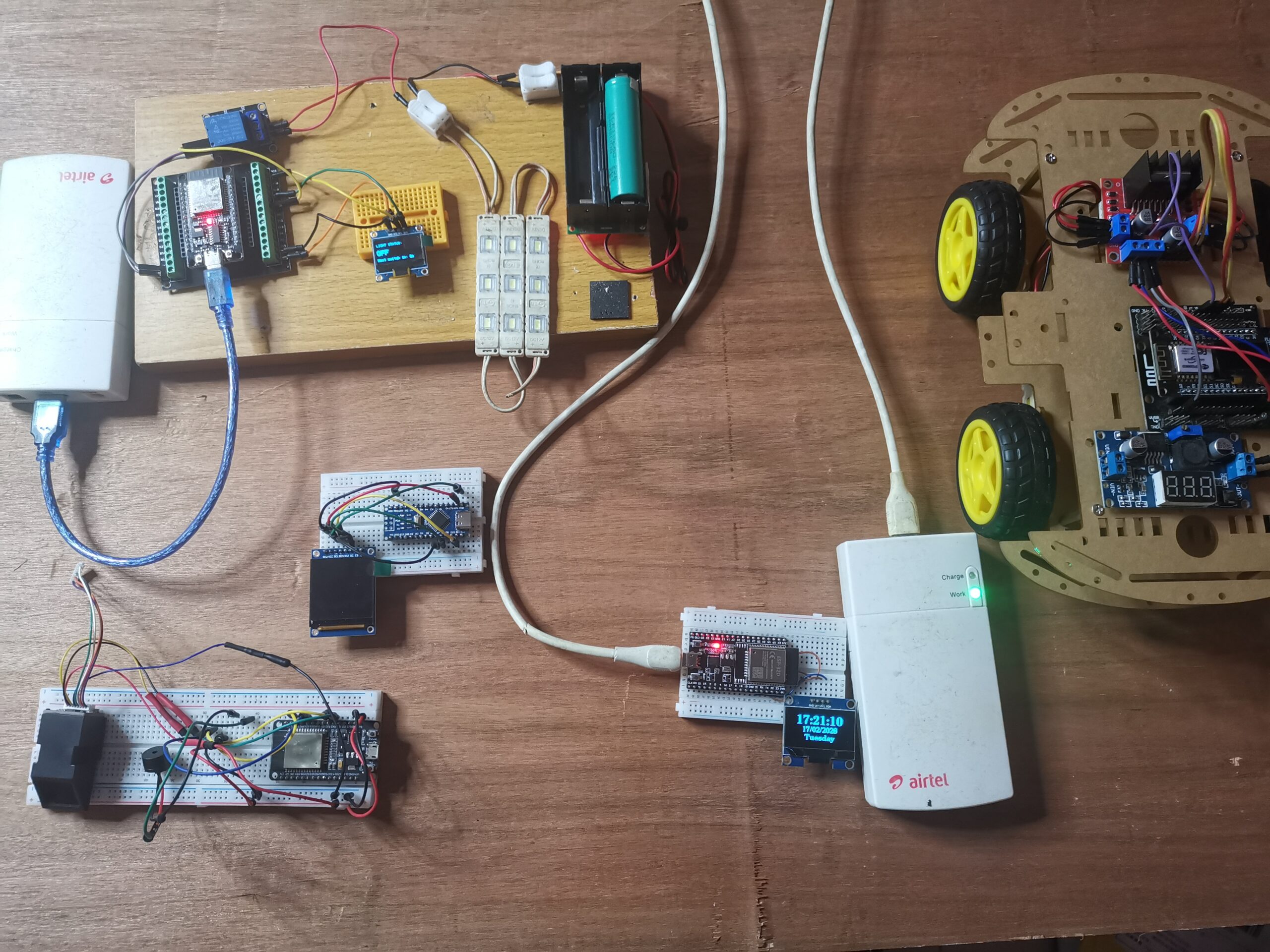
The circuit is straightforward, I have used D33 GPIO to control the relay module.
The OLED is optional. It is connected with D22 & D21 GPIO.
You can also use a 5V 5Amp mobile charger to supply the circuit instead of AC to DC converter.
For manual control, you can also connect a 5A latched switch across the COM & NO terminal of the relay as per the following circuit.
Arduino Code
#include <Wire.h>
#include <Adafruit_GFX.h>
#include <Adafruit_SSD1306.h>

// OLED configuration
#define SCREEN_WIDTH 128
#define SCREEN_HEIGHT 64
Adafruit_SSD1306 display(SCREEN_WIDTH, SCREEN_HEIGHT, &Wire, -1);

// Pin Definitions
const int relayPin = 18;

// Timer Variables (Example: 10 seconds ON, 10 seconds OFF)
unsigned long previousMillis = 0;
const long interval = 10000; // 10,000 milliseconds = 10 seconds
bool lightState = LOW;

void setup() {
  Serial.begin(115200);

  pinMode(relayPin, OUTPUT);
  digitalWrite(relayPin, LOW); // Start with light off

  // Initialize OLED
  if(!display.begin(SSD1306_SWITCHCAPVCC, 0x3C)) {
    Serial.println(F("SSD1306 allocation failed"));
    for(;;);
  }

  display.clearDisplay();
  display.setTextColor(WHITE);
}

void loop() {
  unsigned long currentMillis = millis();
  unsigned long remainingTime = (interval - (currentMillis - previousMillis)) / 1000;

  // Check if it's time to flip the relay
  if (currentMillis - previousMillis >= interval) {
    previousMillis = currentMillis;
    lightState = !lightState; // Toggle state
    digitalWrite(relayPin, lightState);
  }

  // Update Display
  display.clearDisplay();
  display.setTextSize(1);
  display.setCursor(0, 10);
  display.print("LIGHT STATUS:");

  display.setTextSize(2);
  display.setCursor(0, 30);
  if (lightState) {
    display.print("ON");
  } else {
    display.print("OFF");
  }

  display.setTextSize(1);
  display.setCursor(0, 55);
  display.print("Next switch in: ");
  display.print(remainingTime);
  display.print("s");

  display.display();
}