Controlling DC motors is a fundamental skill in robotics, allowing you to move everything from simple two-wheeled buggies to complex tank-tread platforms. The L298N Motor Driver is the industry standard for hobbyists because it is robust, inexpensive, and capable of driving two motors simultaneously.
Components Required
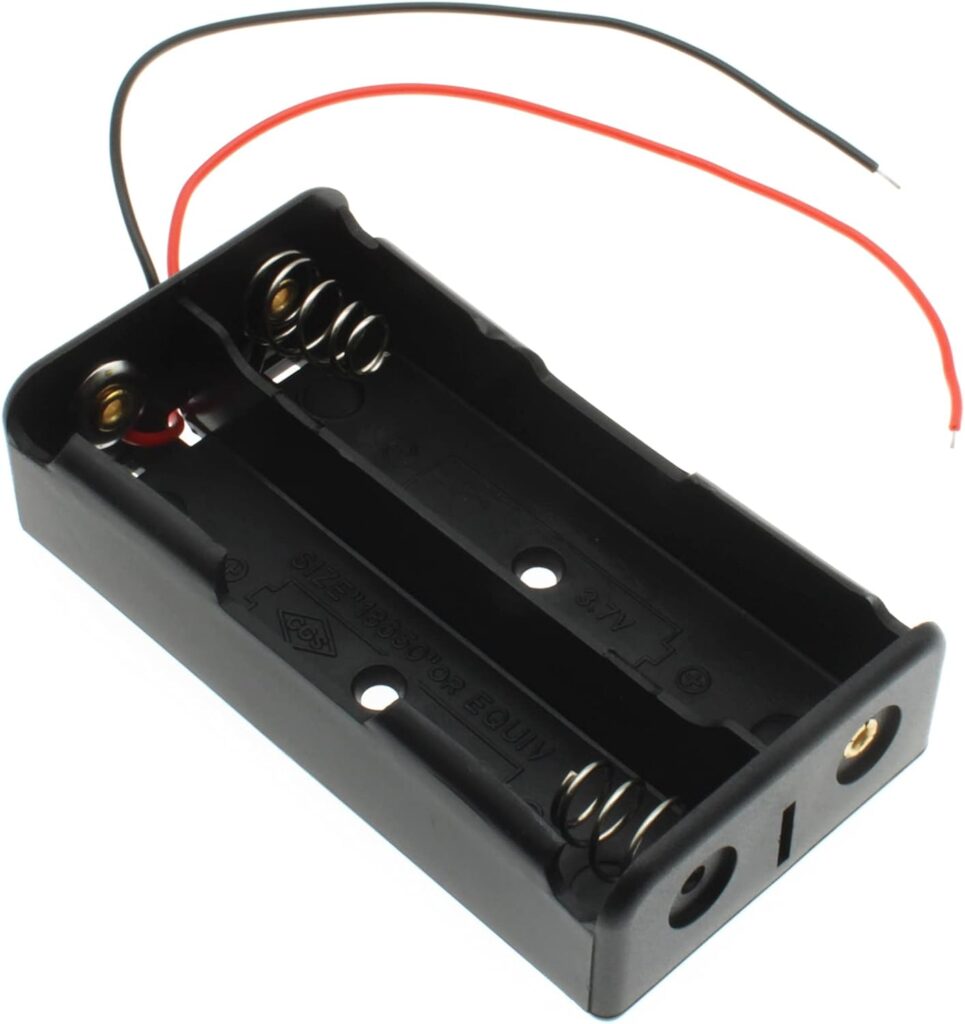
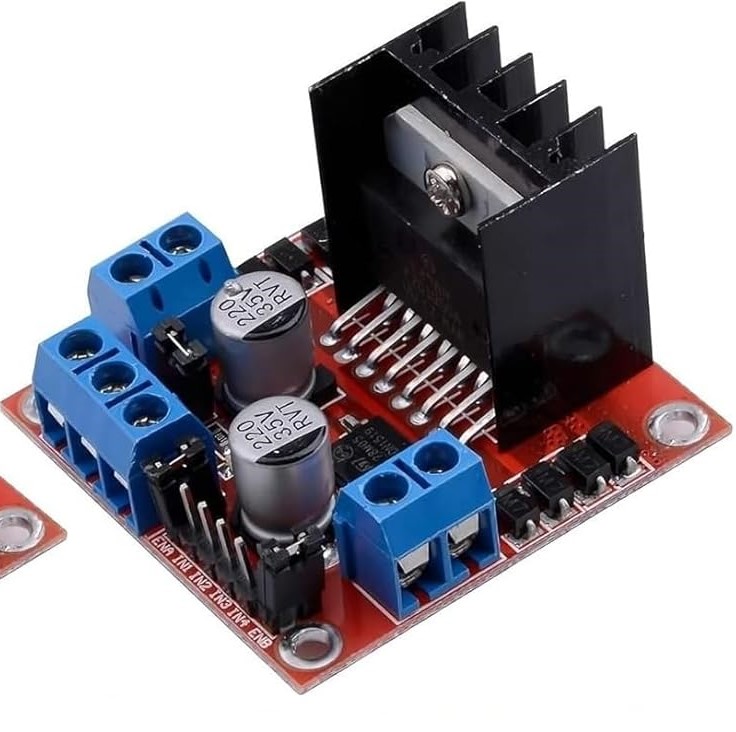
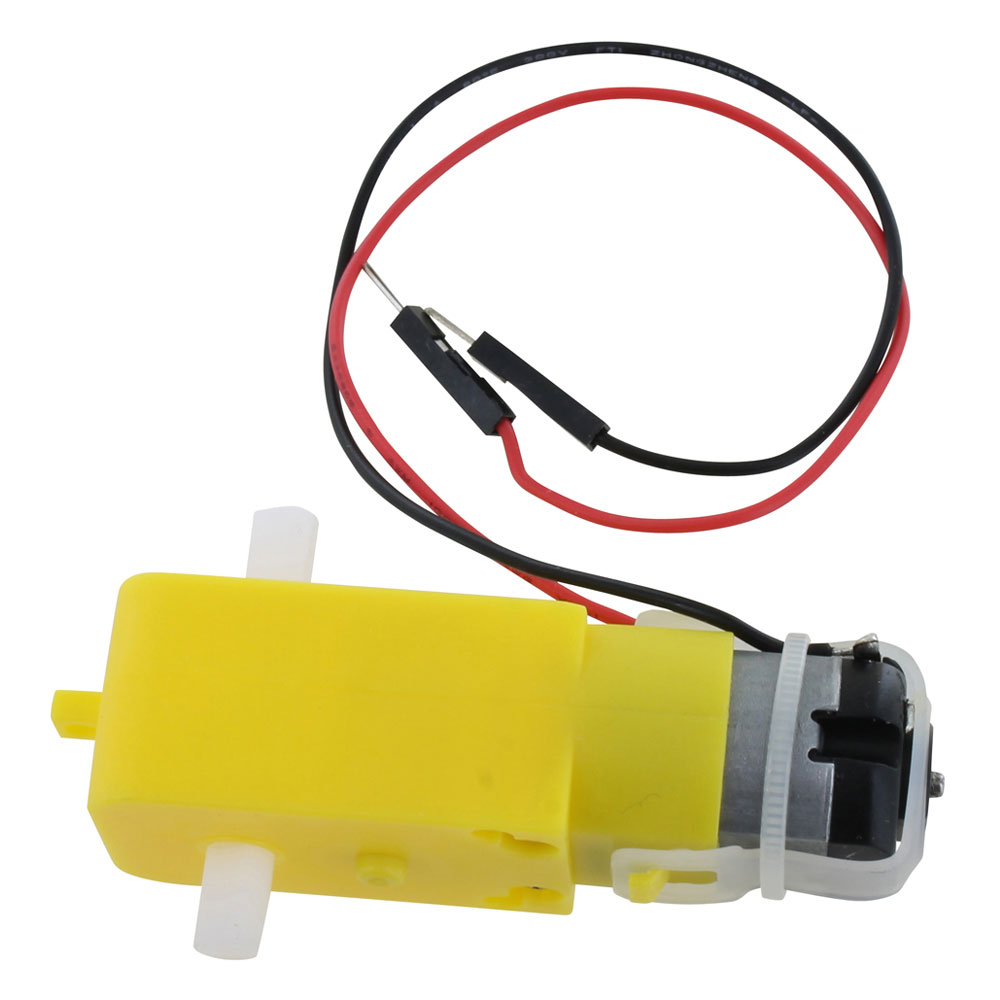

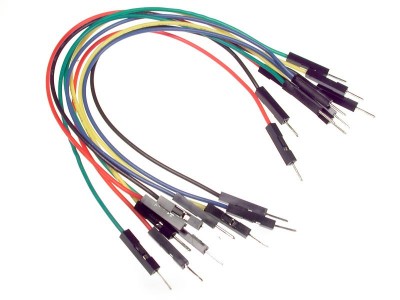
Understanding the L298N Motor Driver
The L298N is a dual H-Bridge motor driver.2 An H-Bridge allows you to switch the polarity of the voltage sent to a motor, which enables it to spin both clockwise and counter-clockwise.3
Pinout Breakdown
| Pin Category | Name | Function |
| Power | 12V, GND, 5V | 12V powers the motors; 5V can act as an output to power your Arduino. |
| Output | OUT1, OUT2, OUT3, OUT4 | Connects directly to Motor A and Motor B. |
| Control | IN1, IN2, IN3, IN4 | Digital pins that determine direction (Forward/Reverse). |
| Speed | ENA, ENB | PWM pins used to control the speed (0–255). |
Wiring the Components
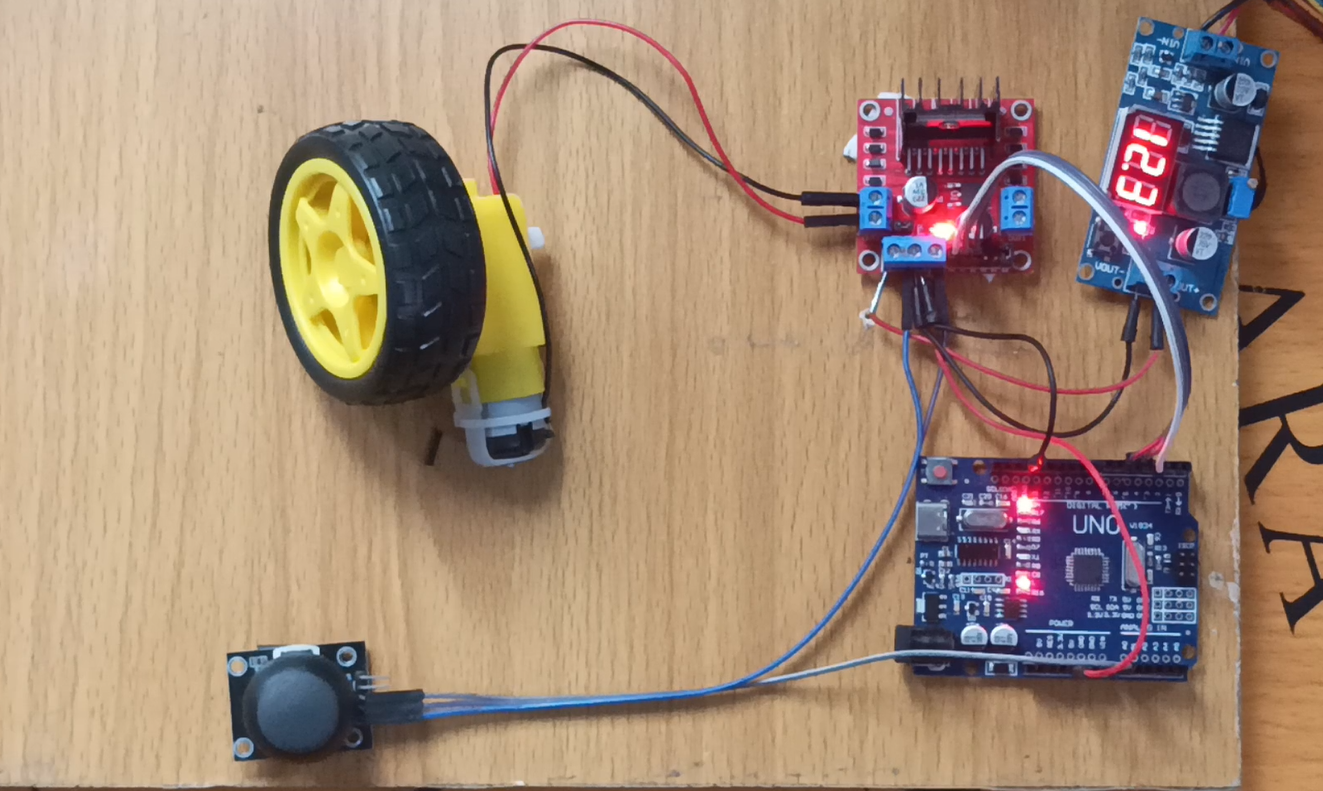
To control two motors, you will need an external power source (like a 9V battery or a Li-ion pack), as the Arduino cannot provide enough current to drive motors directly.
- Motor Connections: Connect Motor A to OUT1/OUT2 and Motor B to OUT3/OUT4.
- Power: Connect the positive terminal of your battery to the 12V terminal and the negative to GND.
- Common Ground: Crucial Step! Connect the GND terminal of the L298N to the GND pin on your Arduino. Without a shared ground, the signals won’t work.
- Logic Pins:
- IN1 & IN2: Arduino Pins 9 & 8 (Controls Motor A direction).4
- IN3 & IN4: Arduino Pins 7 & 6 (Controls Motor B direction).
- ENA & ENB: Arduino Pins 10 & 5 (PWM pins for speed control).
The Logic Table
To move the motors, you set the input pins to HIGH or LOW in specific combinations:
| Movement | IN1 | IN2 | IN3 | IN4 |
| Forward | HIGH | LOW | HIGH | LOW |
| Backward | LOW | HIGH | LOW | HIGH |
| Turn Left | LOW | HIGH | HIGH | LOW |
| Stop | LOW | LOW | LOW | LOW |
Arduino Example Code
This script moves both motors forward at half speed for two seconds, then reverses them.
// Motor A connections
int enA = 10;
int in1 = 9;
int in2 = 8;
// Motor B connections
int enB = 5;
int in3 = 7;
int in4 = 6;

void setup() {
  pinMode(enA, OUTPUT);
  pinMode(enB, OUTPUT);
  pinMode(in1, OUTPUT);
  pinMode(in2, OUTPUT);
  pinMode(in3, OUTPUT);
  pinMode(in4, OUTPUT);
}

void loop() {
  // Move Forward
  digitalWrite(in1, HIGH);
  digitalWrite(in2, LOW);
  digitalWrite(in3, HIGH);
  digitalWrite(in4, LOW);

  // Set speed (0-255)
  analogWrite(enA, 150);
  analogWrite(enB, 150);
  delay(2000);

  // Stop
  digitalWrite(in1, LOW);
  digitalWrite(in2, LOW);
  digitalWrite(in3, LOW);
  digitalWrite(in4, LOW);
  delay(1000);
}Important Safety Tips
- Voltage Drop: The L298N has an internal voltage drop of about 2V. If you provide 9V to the board, your motors will only receive about 7V.
- Jumpers: Ensure the “5V Enable” jumper is on if you are using a power supply between 7V and 12V. This allows the onboard regulator to power the L298N’s own logic circuit.
- Heat: The L298N can get very hot under high loads. Ensure the large metal heatsink has some airflow if you are running the motors for long periods.
Would you like me to show you how to add a Bluetooth module (HC-05) so you can control these motors from your smartphone?
If Yes then add the below connection and code
Integrating a Bluetooth module (HC-05 or HC-06) into your L298N motor project turns your hardware into a remote-controlled robot. This setup allows you to send commands from a smartphone app (like “Bluetooth RC Controller”) to the Arduino, which then tells the L298N how to move the motors.
Wiring the HC-05 Bluetooth Module
The HC-05 uses Serial Communication (TX and RX pins) to talk to the Arduino.
| HC-05 Pin | Arduino Pin | Description |
| VCC | 5V | Logic Power |
| GND | GND | Common Ground |
| TXD | Pin 0 (RX) | Transmits data to Arduino |
| RXD | Pin 1 (TX) | Receives data from Arduino |
⚠️ Important Note: You must unplug the RX and TX wires from the Arduino while uploading your code. If they are plugged in, the computer cannot send the code to the Arduino because the Bluetooth module is “blocking” the serial line.
Bluetooth Remote Control Code
This code listens for specific characters sent via Bluetooth. Most standard “RC Car” apps send ‘F’ for forward, ‘B’ for backward, ‘L’ for left, ‘R’ for right, and ‘S’ for stop.
// Motor A
int enA = 10; int in1 = 9; int in2 = 8;
// Motor B
int enB = 5;  int in3 = 7; int in4 = 6;

char command; // Variable to store incoming Bluetooth data

void setup() {
  Serial.begin(9600); // Standard baud rate for HC-05
  pinMode(enA, OUTPUT); pinMode(in1, OUTPUT); pinMode(in2, OUTPUT);
  pinMode(enB, OUTPUT); pinMode(in3, OUTPUT); pinMode(in4, OUTPUT);
}

void loop() {
  if (Serial.available() > 0) {
    command = Serial.read(); // Read the character sent from phone
    stopMotors(); // Reset motors before next command

    switch (command) {
      case 'F': forward();  break;
      case 'B': backward(); break;
      case 'L': left();     break;
      case 'R': right();    break;
      case 'S': stopMotors(); break;
    }
  }
}

void forward() {
  digitalWrite(in1, HIGH); digitalWrite(in2, LOW);
  digitalWrite(in3, HIGH); digitalWrite(in4, LOW);
  analogWrite(enA, 200);   analogWrite(enB, 200);
}

void backward() {
  digitalWrite(in1, LOW);  digitalWrite(in2, HIGH);
  digitalWrite(in3, LOW);  digitalWrite(in4, HIGH);
  analogWrite(enA, 200);   analogWrite(enB, 200);
}

void stopMotors() {
  digitalWrite(in1, LOW);  digitalWrite(in2, LOW);
  digitalWrite(in3, LOW);  digitalWrite(in4, LOW);
}

// Add similar functions for left() and right()How to Connect Your Phone
- Pairing: Go to your phone’s Bluetooth settings. Search for HC-05. The default pairing code is usually 1234 or 0000.
- App: Download a “Bluetooth Terminal” or “Arduino RC Car” app from the Play Store/App Store.
- Connect: Open the app, select the HC-05 module, and start pressing the arrows!