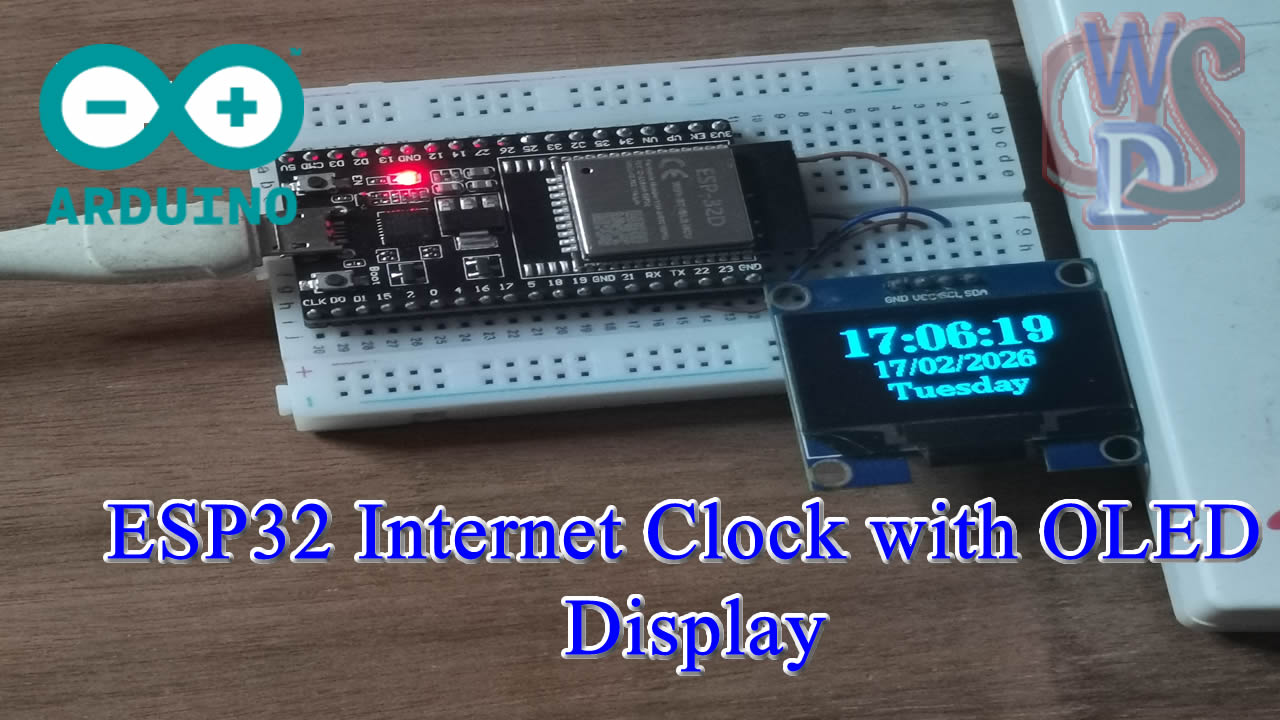
Creating an internet-connected clock to display live date and time is a fantastic project for anyone looking to incorporate the functionality of real-time information into their electronics projects. Whether you’re a beginner or a DIY enthusiast, this step-by-step tutorial will guide you through using an ESP32 NodeMCU and a 128×64 OLED display to build your very own internet clock.
Materials Needed for the Project:
- ESP32 NodeMCU: A powerful microcontroller with WiFi capability.
- 128×64 OLED Display: A small screen to display live time and date.
- Arduino IDE: For programming the ESP32 and uploading the code.
- USB Cable: To connect the ESP32 to your PC for uploading code.
- Libraries: U8g2 and NTPClient libraries (for interfacing the OLED display and retrieving time from an NTP server).
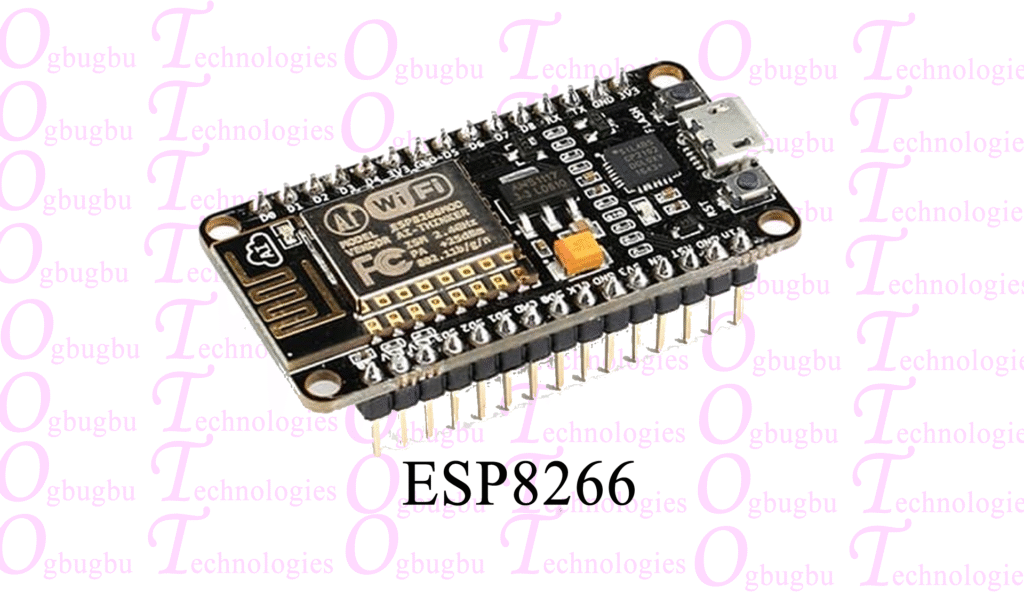
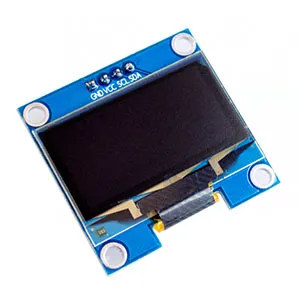
Step 1: Setting Up the Hardware
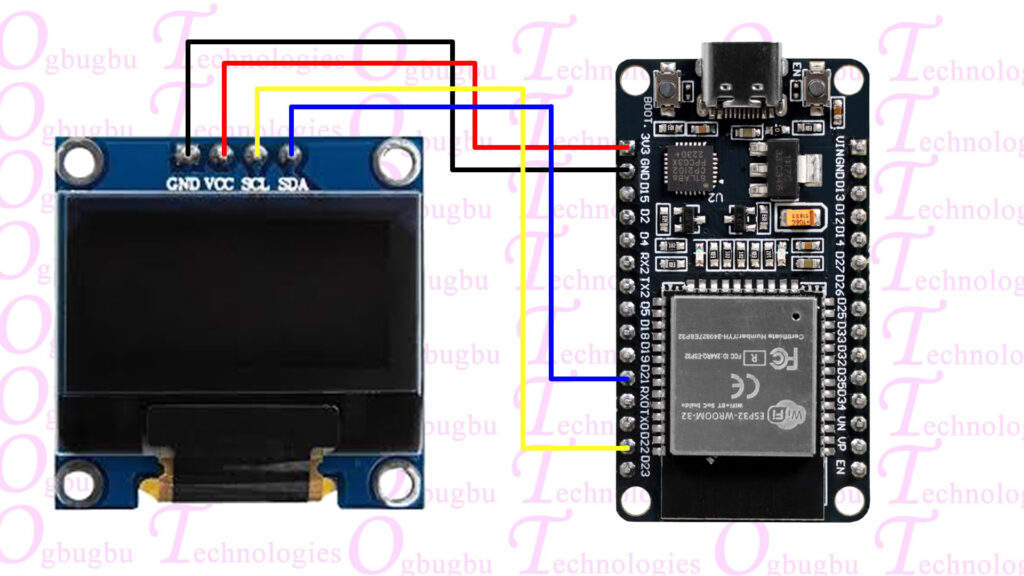
Start by connecting the 128×64 OLED display to the ESP32 NodeMCU. These two components communicate over the I2C protocol, which simplifies the wiring process. Here’s how to connect the display to the ESP32:
- VCC Pin (OLED): Connect this to the 3.3V pin on the ESP32.
- GND Pin (OLED): Connect this to the GND pin on the ESP32.
- SCL Pin (OLED): Connect this to GPIO22 (the default I2C clock pin on the ESP32).
- SDA Pin (OLED): Connect this to GPIO21 (the default I2C data pin on the ESP32).
After making sure the connections are secure, connect the ESP32 to your PC using the USB cable. This will power the ESP32 and allow you to upload the code via the Arduino IDE.
Step 2: Installing Required Libraries
To interface with the OLED display and fetch live time from an NTP (Network Time Protocol) server, you’ll need to install two libraries: U8g2 and NTPClient. Here’s how to install them:
- Open Arduino IDE and navigate to Sketch > Include Library > Manage Libraries.
- Search for U8g2 and click Install.
- Do the same for NTPClient.
These libraries allow you to control the OLED screen and retrieve real-time data from the internet, which is critical for displaying accurate time.
Step 3: Coding the ESP32
Now, it’s time to modify and upload the code to the ESP32. Use the code provided in the video description. Here are some important things to keep in mind:
- WiFi Credentials: Open the code and enter your WiFi SSID (network name) and password in the designated fields. Ensure the SSID and password are accurate and case-sensitive for a successful connection.
- NTP Server & GMT Offset: You will also need to adjust the NTP server settings and provide the correct GMT Offset for your country. This ensures the clock displays the time accurately based on your location. The GMT Offset values for different countries are available in the video description, so make sure to update the code accordingly.
- Compilation: Once you’ve entered your WiFi credentials and the correct GMT Offset, it’s important to check for errors. After verifying the code, click the Verify button to ensure there are no issues with the code.
Video Step by Step Explanation
Step 4: Uploading the Code
After verifying that the code is free of errors, click the Upload button in Arduino IDE. The ESP32 will compile the code and upload it via the USB connection to your board.
Once the upload is complete, the ESP32 will automatically run the program. The OLED display will now show the live date and time, based on the correct GMT Offset for your region.
#include <WiFi.h>
#include "time.h"

// Replace with your network credentials
const char* ssid     = "YOUR_WIFI_SSID";
const char* password = "YOUR_WIFI_PASSWORD";

// NTP server settings
const char* ntpServer = "pool.ntp.org";
const long  gmtOffset_sec = -18000; // Replace with your GMT offset in seconds
const int   daylightOffset_sec = 3600; // Offset for daylight savings (3600s = 1hr)

void printLocalTime() {
  struct tm timeinfo;
  if (!getLocalTime(&timeinfo)) {
    Serial.println("Failed to obtain time");
    return;
  }
  // Standard strftime format: %A (Day), %B (Month), %d (Day of month), %Y (Year), %H:%M:%S (Time)
  Serial.println(&timeinfo, "%A, %B %d %Y %H:%M:%S");
}

void setup() {
  Serial.begin(115200);

  // Connect to Wi-Fi
  Serial.printf("Connecting to %s ", ssid);
  WiFi.begin(ssid, password);
  while (WiFi.status() != WL_CONNECTED) {
      delay(500);
      Serial.print(".");
  }
  Serial.println(" CONNECTED");

  // Init and get the time
  configTime(gmtOffset_sec, daylightOffset_sec, ntpServer);
  printLocalTime();
}

void loop() {
  delay(1000);
  printLocalTime();
}Wi-Fi Setup:
const char* ssid     = "Your_wifi_SSID";
const char* password = "Wifi_password"; - These lines define your Wi-Fi credentials that the ESP32 will use to connect to your wireless network.
NTP Client Setup:
NTPClient timeClient(ntpUDP, "pool.ntp.org", 19800, 3600000); // Timezone offset (19800 seconds = UTC +5:30)GMT Offsets for Various Countries : click here
Troubleshooting Tips
If you face any issues during the project, here are a few things to check:
- Ensure that your WiFi credentials are correctly entered and that the ESP32 is connected to your network.
- Make sure the SCL and SDA pins are correctly connected to GPIO22 and GPIO21, respectively, for I2C communication.
- Verify that the correct board is selected under Tools > Board in the Arduino IDE.
Step 5: Exploring Additional Features
This internet clock project provides a solid foundation for beginners, but there’s plenty of room to expand! In future tutorials, we’ll dive deeper into adding advanced features such as:
- Customizing the display: Add more information like temperature or location-based data.
- Designing a vibrant, interactive clock face.
- Integrating other sensors like temperature or humidity sensors.
If you enjoyed this project, stay tuned for more in-depth tutorials that explore the full potential of the ESP32 and OLED displays.
Conclusion
By following this tutorial, you’ve learned how to build an internet clock using the ESP32 NodeMCU and 128×64 OLED display, displaying real-time date and time. This project is a great starting point for beginners interested in working with WiFi-enabled devices and displays.