In this tutorial we will learn how to use TM1637 and IR Sensor to design an object counter that will be capable of counting up to nine thousand (9000), the major focus is on the two modules used in this tutorial and they
- TM1637
- IR Sensor
TM1637
The TM1637: The Go-To Display for Arduino Counters
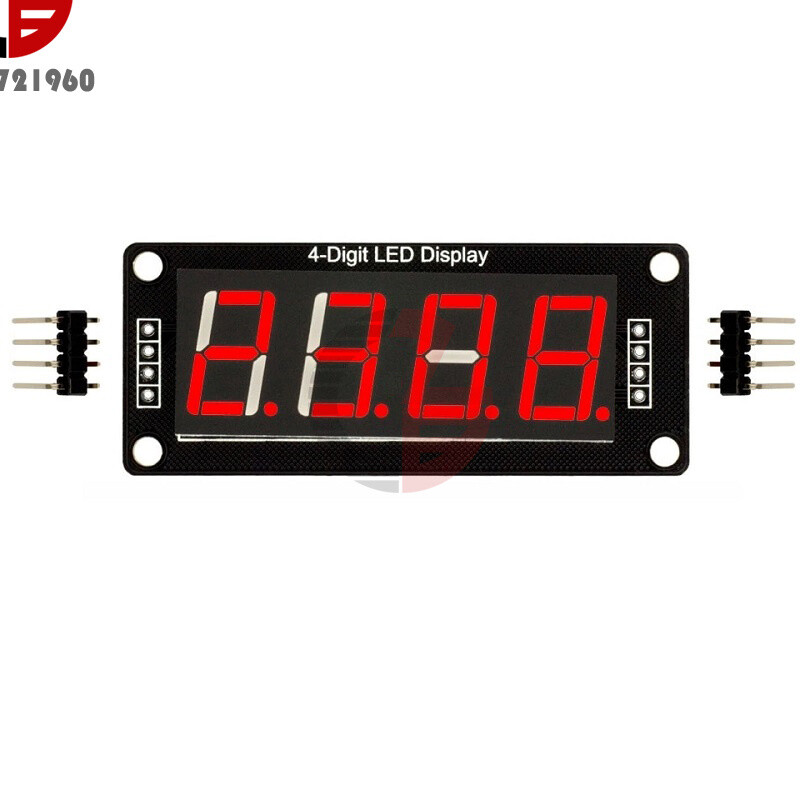
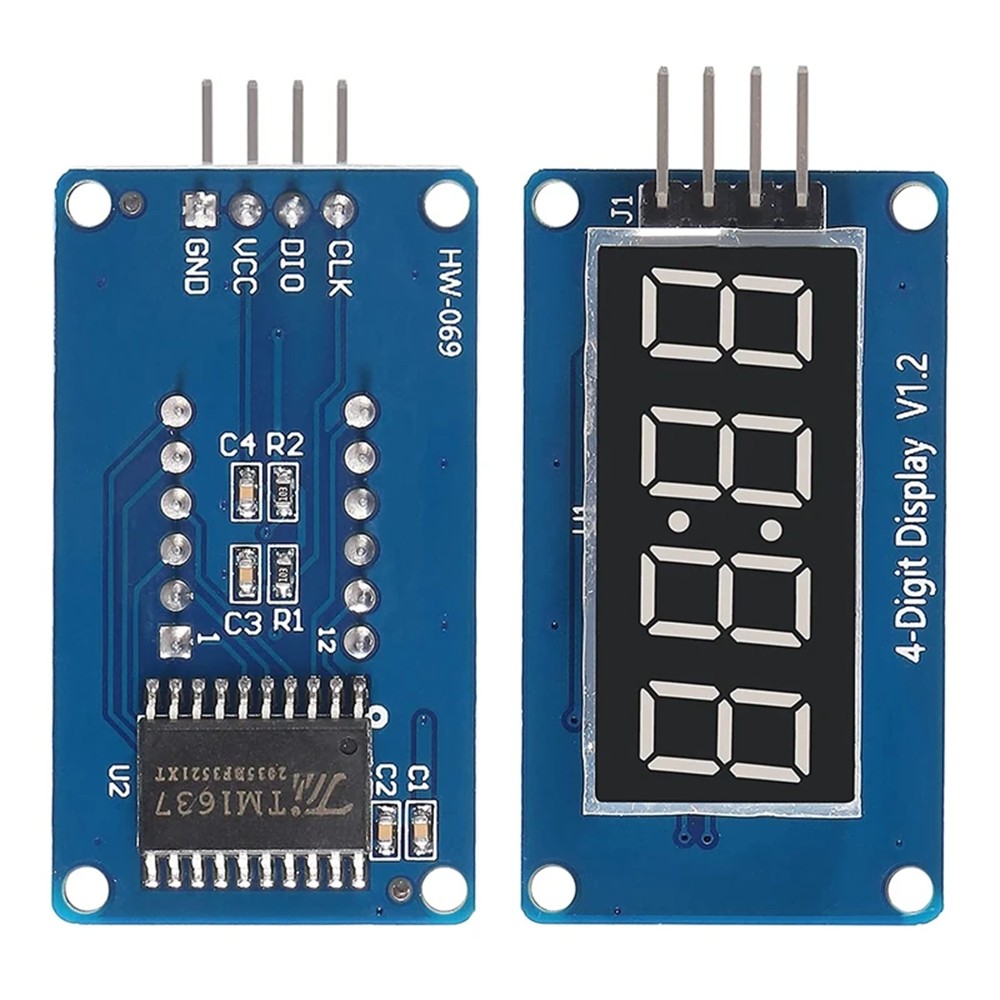
If you’ve ever built a digital clock, a microwave timer, or an object counter, you’ve likely encountered the TM1637. It is one of the most popular 7-segment display modules in the maker world because it solves a major headache: pin management.
A standard 4-digit 7-segment display has 12 pins. Connecting that directly to an Arduino would eat up almost all your digital pins. The TM1637 module reduces that requirement to just two pins.
How It Works: The “Serial” Magic
The TM1637 is technically a LED Drive Control circuit. It acts as an intermediary between your microcontroller (the brain) and the LEDs (the display).
Instead of the Arduino powering every individual segment, it sends “data packets” to the TM1637 chip. The chip then handles the multiplexing—refreshing the digits so fast that the human eye perceives them as being constantly lit.+1
Key Features
- Two-Wire Interface: Uses only
CLK(Clock) andDIO(Data I/O). Note that while it looks like I2C, it uses a slightly different protocol. - Brightness Control: You can adjust the intensity of the LEDs via software (usually 8 levels).
- Wide Voltage Range: Operates comfortably at both 3.3V and 5V, making it compatible with Arduino, ESP8266, and Raspberry Pi.
- Onboard Colon: Most modules feature a center colon (
:), making them perfect for HH:MM time displays.
Wiring Guide
The wiring is universal across almost all 4-digit TM1637 modules:
| TM1637 Pin | Arduino Pin | Description |
| GND | GND | Ground |
| VCC | 5V or 3.3V | Power Supply |
| DIO | Any Digital Pin (e.g., D2) | Data Input/Output |
| CLK | Any Digital Pin (e.g., D3) | Clock Signal |
Programming with the TM1637Display Library
While you can write your own bit-banging code, the library by Avishay Orpaz is the industry standard. It simplifies complex tasks into single lines of code.
Basic Code Example:
#include <TM1637Display.h>

#define CLK 3
#define DIO 4

TM1637Display display(CLK, DIO);

void setup() {
  display.setBrightness(0x0a); // Set brightness to medium-high
}

void loop() {
  display.showNumberDec(1234); // Displays the number 1234
  delay(2000);
  display.clear();
  delay(1000);
}Common Use Cases
- Digital Clocks: Using the center colon to separate hours and minutes.
- Industrial Counters: Paired with an IR sensor or limit switch to count products on a line.
- Temperature Displays: Showing sensor data (e.g., from a DHT11) with a custom “C” or “F” character on the last digit.
- Scoreboards: A cheap and bright way to keep track of points in DIY games.
Pro-Tip: Power Management
While the TM1637 is efficient, lighting up all segments (the number “8888”) at maximum brightness can draw significant current. If your Arduino is resetting or the display is flickering, try lowering the brightness in your code using display.setBrightness(0x02); or use an external 5V power supply.
Would you like me to show you how to display custom letters (like “Err” or “COOL”) on the TM1637?
IR Sensor
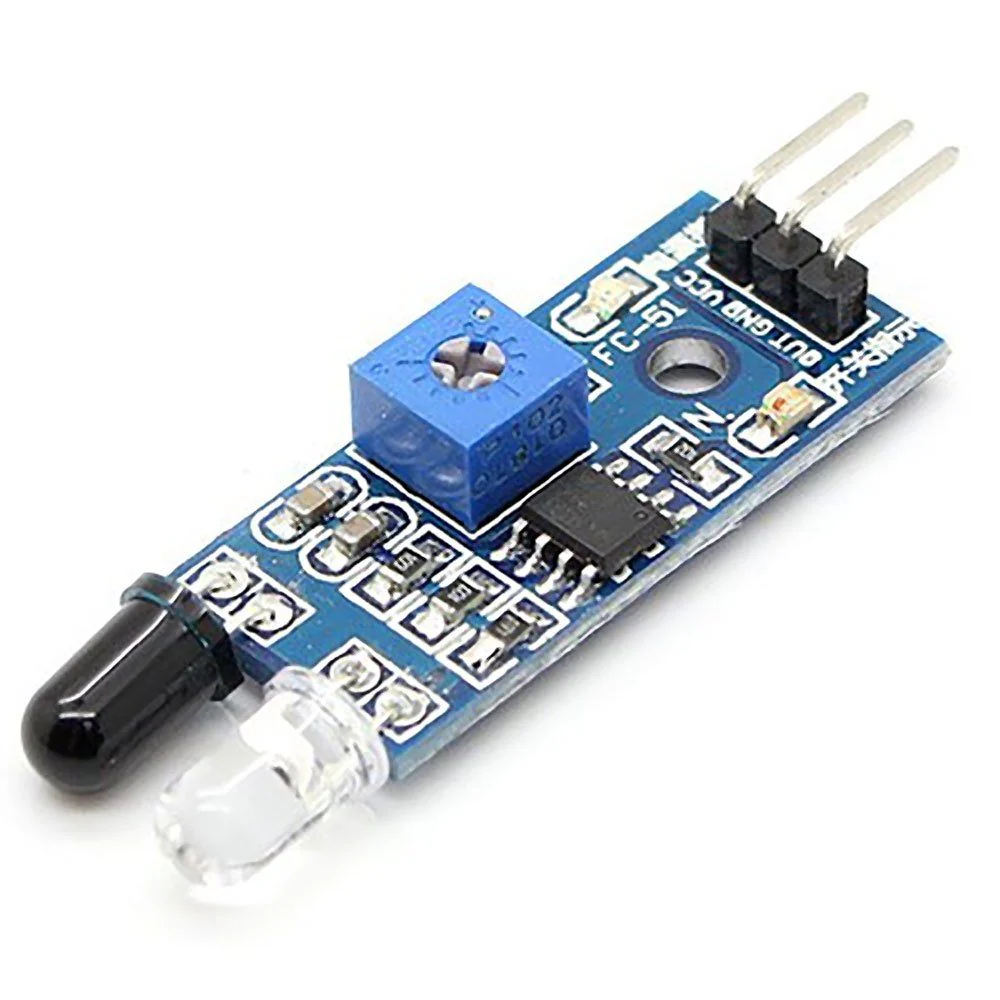
The IR (Infrared) Sensor is the “electronic eye” of the maker world. It is a simple yet powerful component used to detect obstacles, track lines, or count objects. Most hobbyist modules, like the FC-51, are digital, meaning they tell the Arduino one of two things: “Something is there” or “Nothing is there.”
1. How it Works: The Physics of Reflection
An IR sensor module consists of two main parts:
- The IR Transmitter (IR LED): This emits invisible infrared light at a specific frequency.
- The IR Receiver (Photodiode): This looks for that specific infrared light.
When an object comes in front of the sensor, the infrared light from the transmitter hits the object and reflects back. The receiver detects this reflected light and sends a signal to the onboard comparator chip (usually an LM393), which سپس switches the output pin.
2. Anatomy of the Module
Most IR modules have the following components:
- Potentiometer (Adjustment Screw): Used to set the detection range (usually 2cm to 30cm). Turning it clockwise generally increases sensitivity.
- Indicator LEDs: One LED stays on to show the power is connected; the other lights up only when an object is detected.
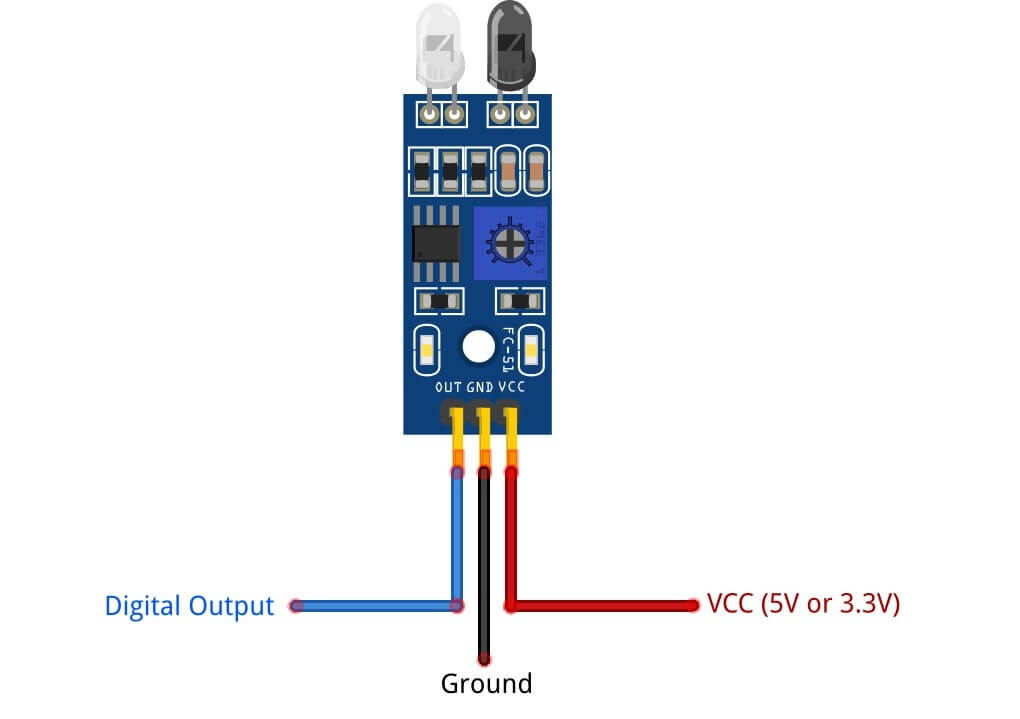
- Three Pins:
- VCC: 3.3V to 5V Power.
- GND: Ground.
- OUT (Digital): High/Low signal sent to the Arduino.
3. Key Characteristics
- Active LOW Signal: Most of these sensors output a LOW (0V) signal when an object is detected and a HIGH (5V) signal when the path is clear.
- Color Sensitivity: IR sensors “see” colors differently. White surfaces reflect IR light very well (easy to detect), while Black surfaces absorb IR light (hard to detect). This is why they are perfect for line-following robots.
- Sunlight Interference: Since the sun is a massive source of infrared light, these sensors can behave erratically or “stay triggered” if used in direct sunlight.
4. Simple Arduino Integration
Since it is a digital sensor, you use digitalRead() to get data from it.
int sensorPin = 2; // Connected to OUT on the sensor

void setup() {
  pinMode(sensorPin, INPUT);
  Serial.begin(9600);
}

void loop() {
  int val = digitalRead(sensorPin);
  if (val == LOW) {
    Serial.println("Object Detected!");
  } else {
    Serial.println("Path Clear");
  }
  delay(100);
}5. Common Applications
- Obstacle Avoidance: Used in robots to prevent them from crashing into walls.
- Object Counting: Placed across a conveyor belt to count items passing by.
- Security Alarms: Detecting when a door is opened or a hand reaches into a restricted area.
- Tachometers: Counting the revolutions of a spinning wheel by detecting a white strip on the wheel.
Would you like to see how to use an IR sensor to trigger a servo motor, like an automatic trash can or a gate?
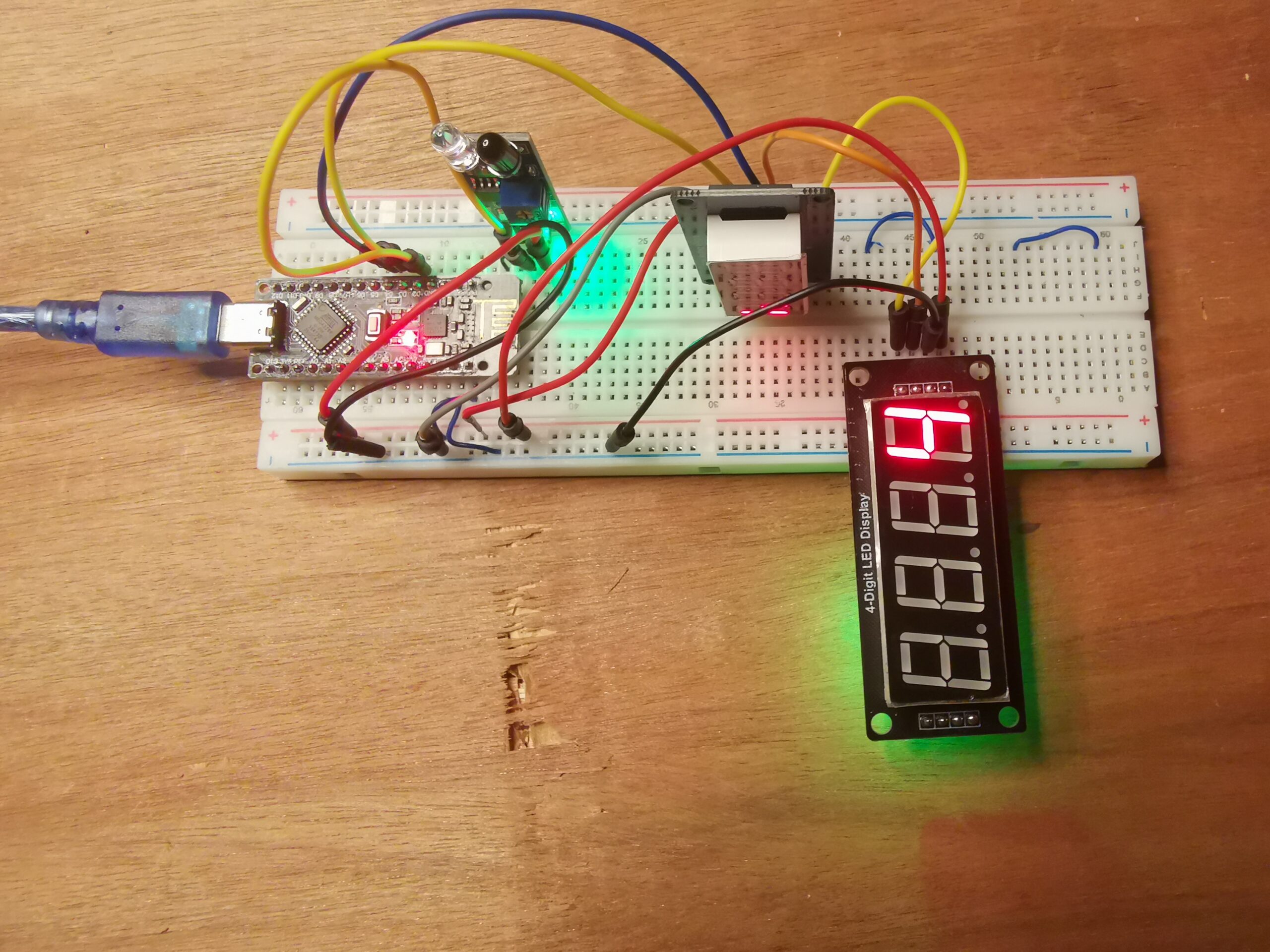
To create an object counter, we combine the IR Sensor (the “eyes”), the Arduino (the “brain”), and the TM1637 (the “scoreboard”).
🛠️ Hardware Wiring
| Component | Arduino Pin | Note |
| IR Sensor OUT | D2 | Digital Input |
| TM1637 CLK | D3 | Clock Pin |
| TM1637 DIO | D4 | Data Pin |
| VCC Pins | 5V | Power for both modules |
| GND Pins | GND | Ground for both modules |
Physical Design
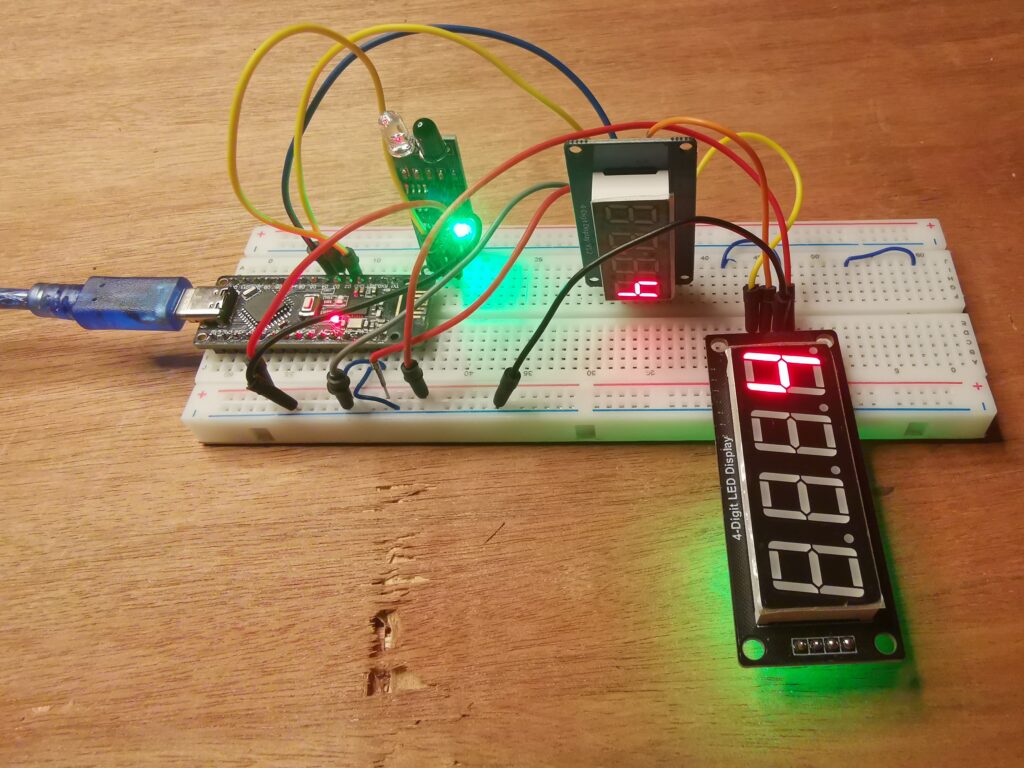
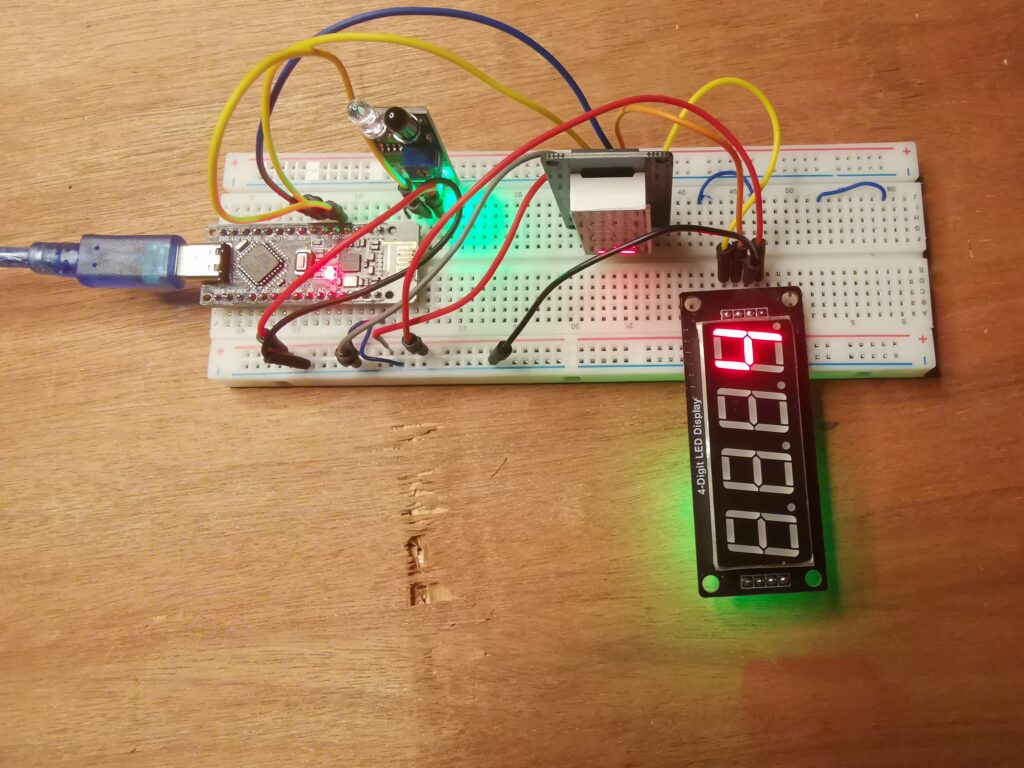
💻 The Arduino Code
This code includes “State Change Detection.” This ensures that even if an object stays in front of the sensor for a long time, the counter only goes up by one.
Note: You must install the TM1637Display library by Avishay Orpaz in your Arduino IDE first.
#include <TM1637Display.h>

// Module connection pins (Digital Pins)
#define CLK 3
#define DIO 4
#define IR_PIN 2

// Initialize the display object
TM1637Display display(CLK, DIO);

int count = 0;
int lastSensorState = HIGH; // IR sensors are usually HIGH when nothing is there

void setup() {
  pinMode(IR_PIN, INPUT_PULLUP); // Use internal pullup for stability

  display.setBrightness(0x0f);   // Set max brightness
  display.showNumberDec(0);      // Initialize display with 0

  Serial.begin(9600);
  Serial.println("Object Counter Started...");
}

void loop() {
  // Read the current state of the IR sensor
  int currentSensorState = digitalRead(IR_PIN);

  // Check if the sensor state has changed (from HIGH to LOW)
  // LOW means an object is detected
  if (currentSensorState == LOW && lastSensorState == HIGH) {
    count++;
    display.showNumberDec(count); // Update the 7-segment display

    Serial.print("Count: ");
    Serial.println(count);

    delay(50); // Small debounce delay to prevent flickering
  }

  // Save the current state for the next loop
  lastSensorState = currentSensorState;
}🔍 How it Works
- The Trigger: Most IR Obstacle sensors output a LOW signal when they see something.
- The Comparison: The code compares
currentSensorStatewithlastSensorState. The count only increases when the state changes from “Nothing” to “Object Detected.” - The Display: The
display.showNumberDec(count)function sends the integer directly to the TM1637 modules.
💡 Pro-Tips
- Sensitivity: If the counter isn’t working, turn the small potentiometer (screw) on the IR sensor until the onboard LED only lights up when your hand is in front of it.
- Sunlight: IR sensors struggle in direct sunlight. If you’re testing outdoors, the sensor might stay “LOW” constantly. Try testing in a shaded area.
Since you are using a 4-digit display, this counter can go all the way up to 9999. Would you like me to add a “Reset” button to the code so you can clear the count back to zero?