In this project, we will learn how to create a temperature based fan speed controller by using the DHT11 Temperature & Humidity Sensor and L298N motor driver.
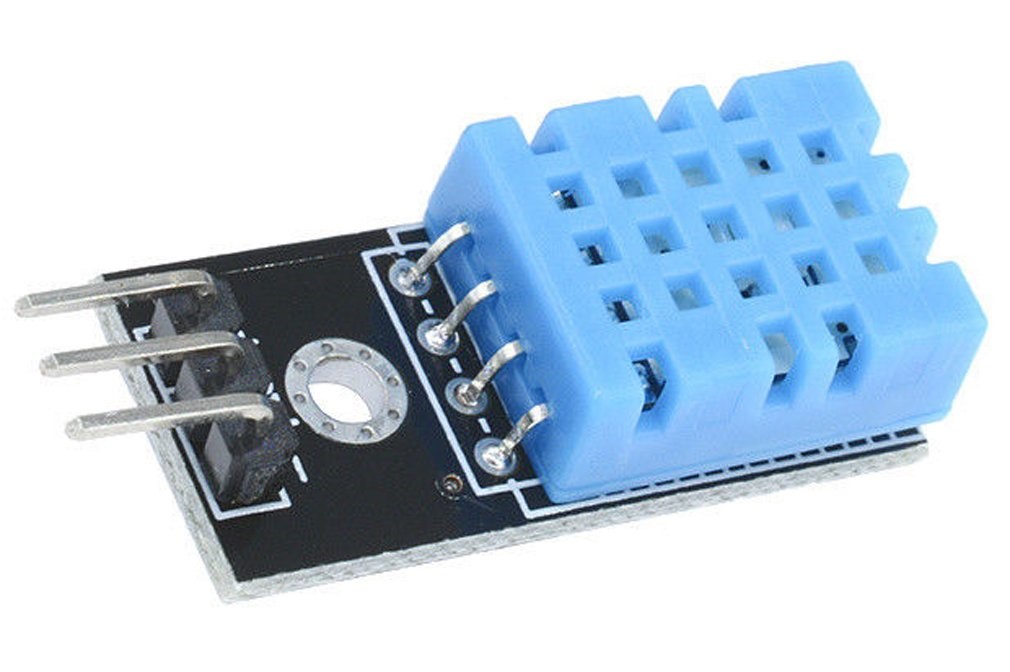
The DHT11 is a low-cost temperature and humidity sensor. It contains two parts – a thermistor and a capacitive humidity sensor. There is a chip inside converting the analog signals to a calibrated digital output. The digital signal is easy to read by using a microcontroller like Arduino.
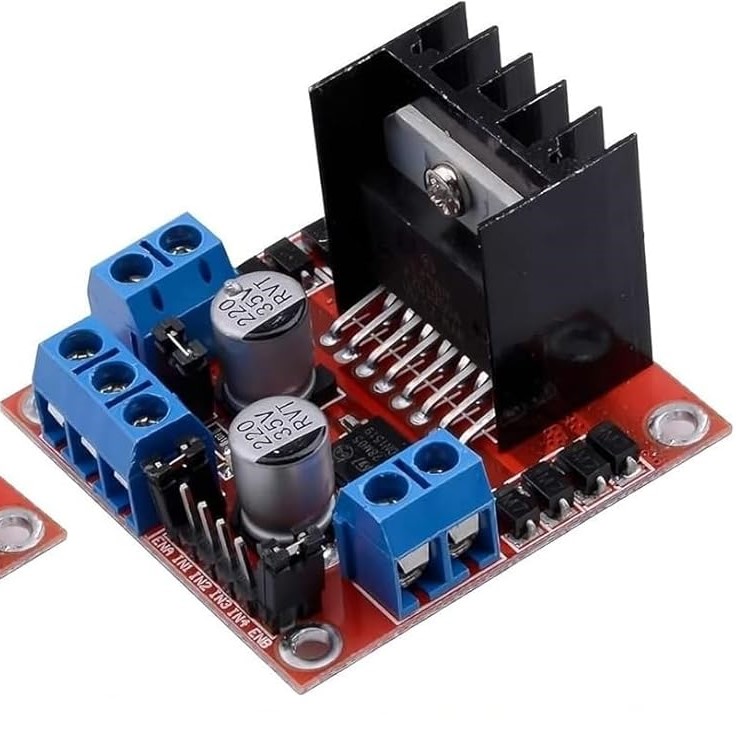
The L298N Motor Driver is a dual H-Bridge motor driver which allows speed and direction control of two DC motors at the same time. It’s widely used in robotics and embedded systems due to its ease of use, low cost, and ability to drive two motors simultaneously. Visit Introduction to L298N Motor Driver | How It Works for more information.
Hardware Required
Arduino Nano
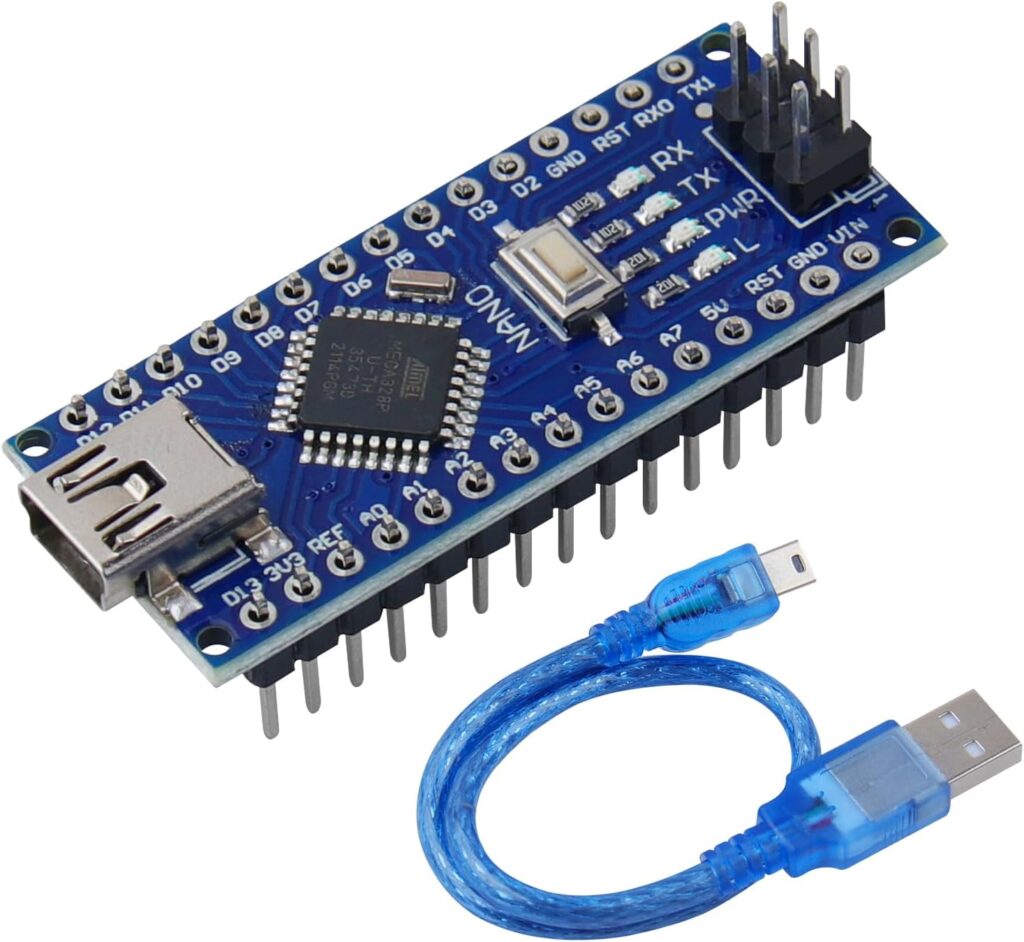
For more information, visit What is Arduino Nano? A Beginner’s Guide.
DHT11 Sensor
L298N Motor Driver
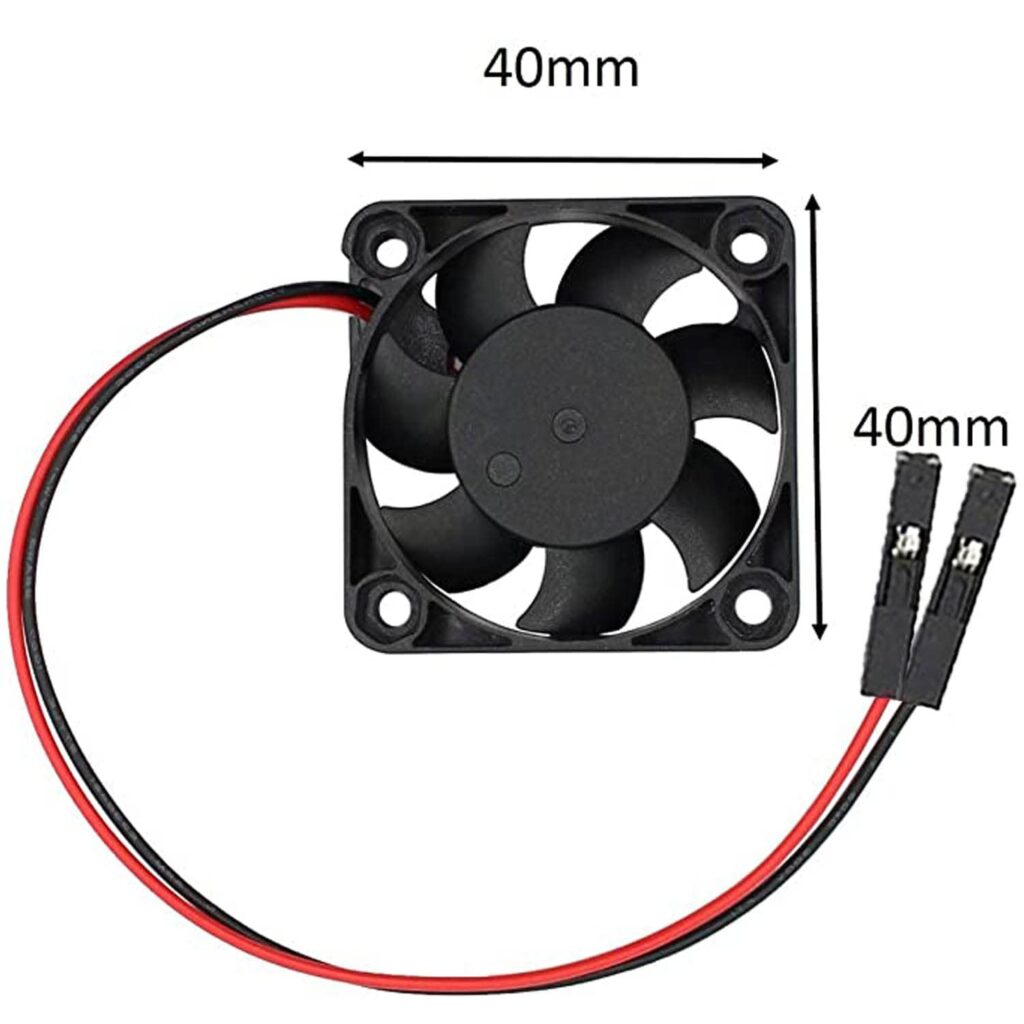
5V DC Fan
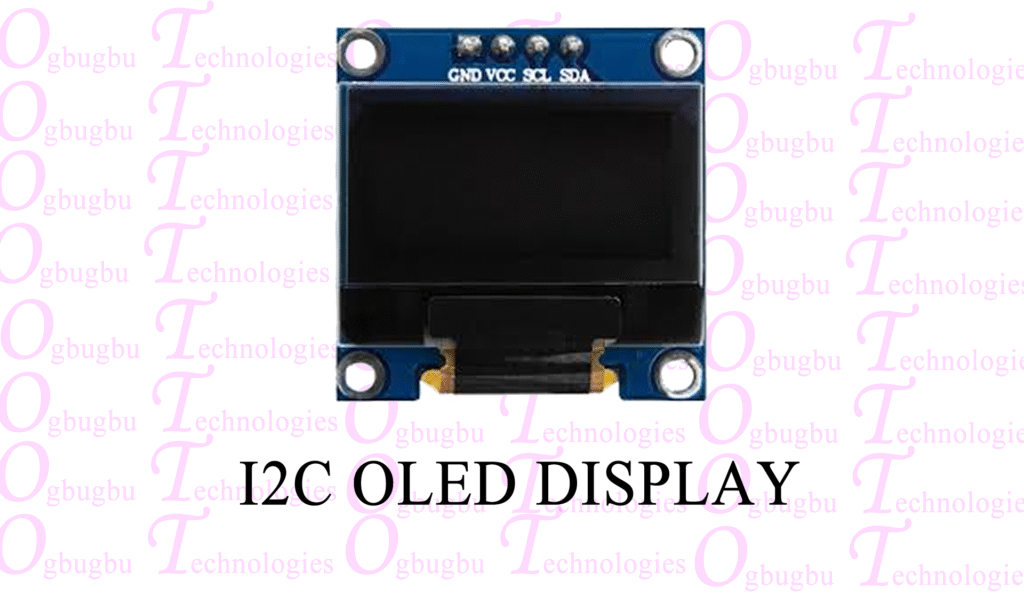
SSD1306 OLED Display
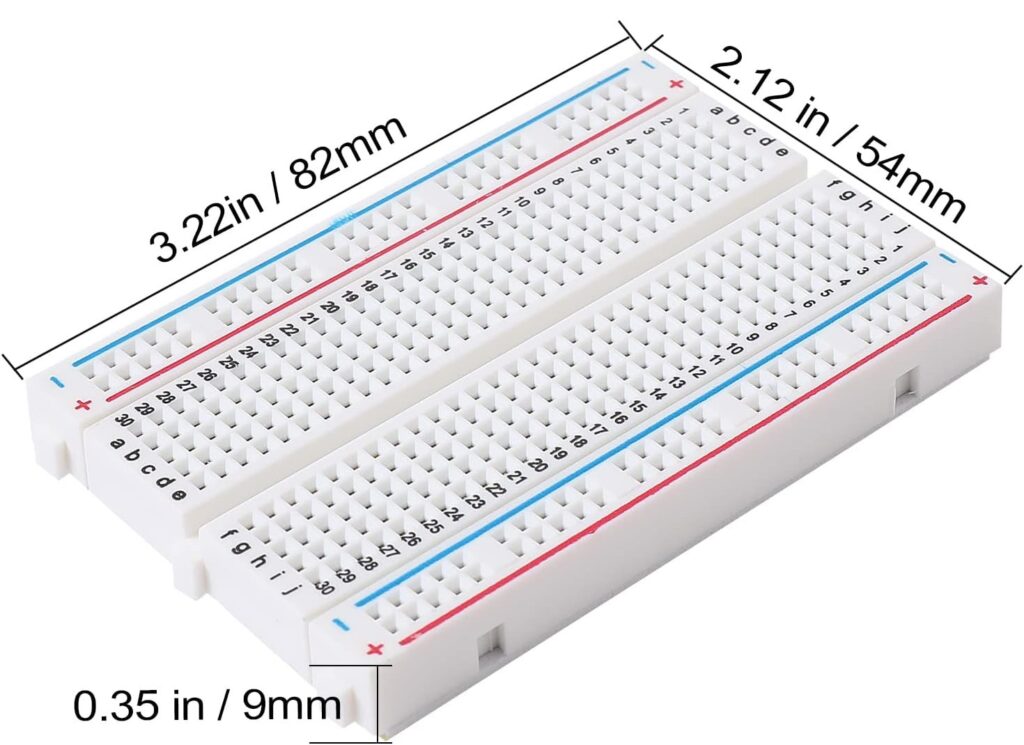
Breadboard
Jumper Wires
Working Principle
The DHT11 Temperature sensor is used to measure the surrounding temperature and sends digital data to the Arduino. Arduino converts this data into a pulse-width modulation (PWM) signal and sends it to the L298N Motor Driver. The L298N generates a voltage according to the PWM input and controls the fan’s speed.
Diagram
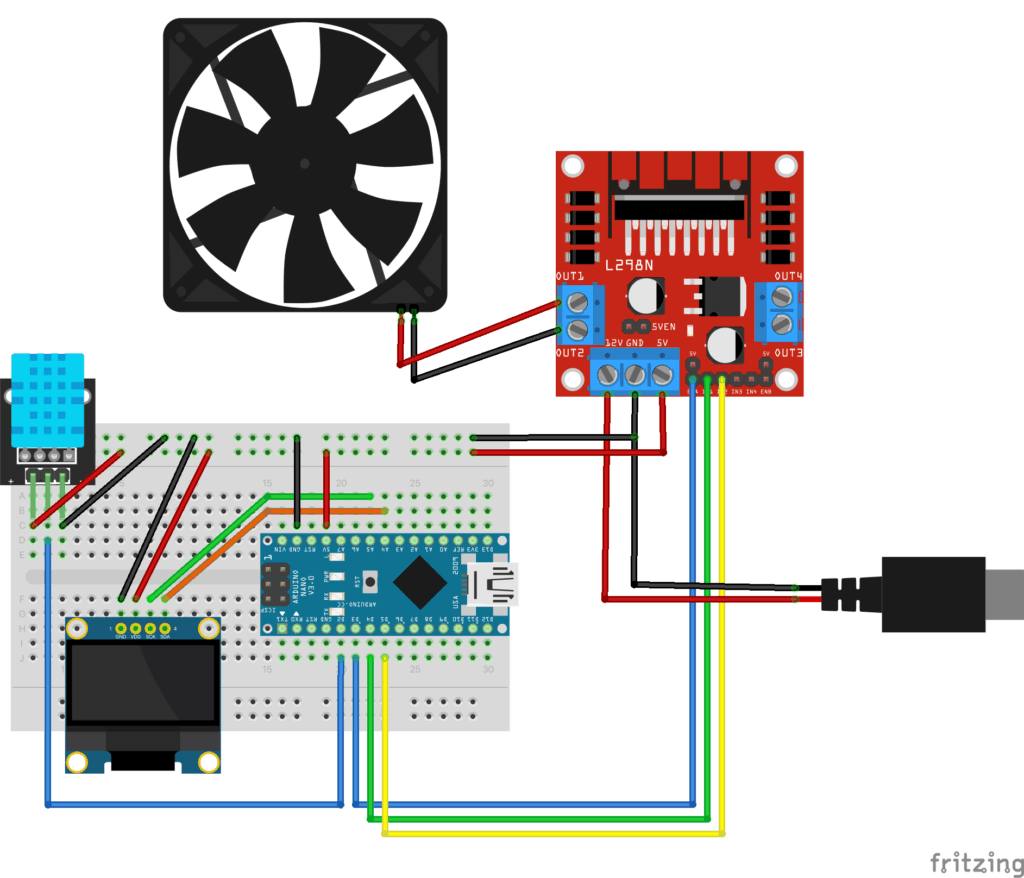
Setup
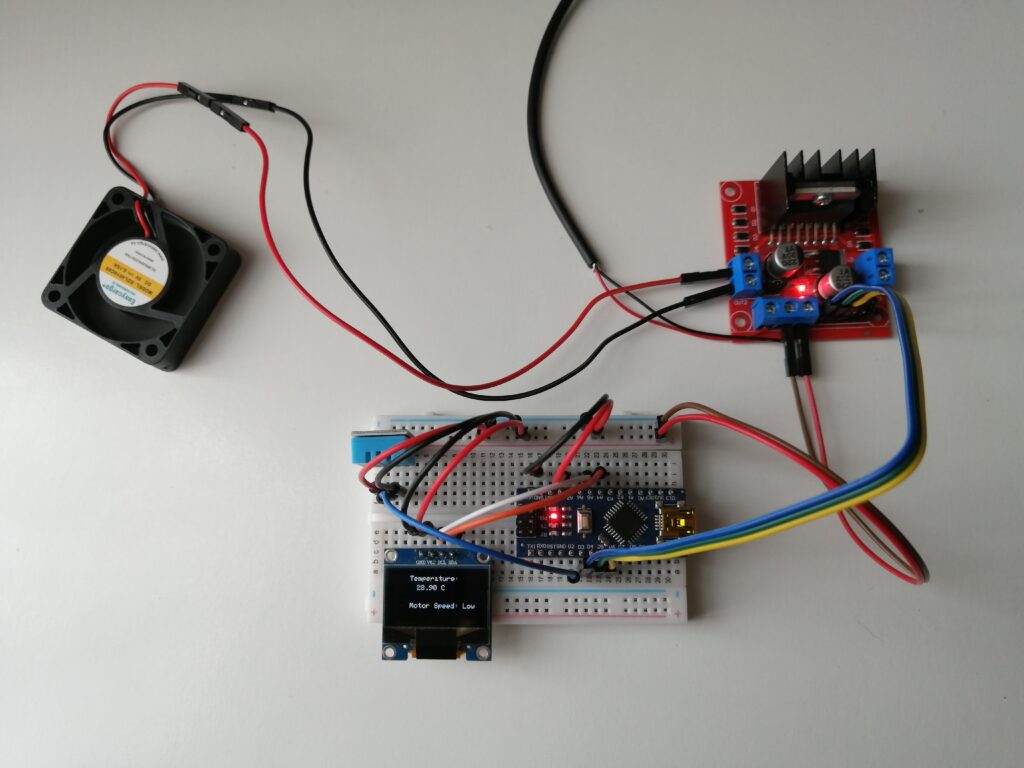
1. Upload the program
Connect the Arduino to your computer using a USB cable. Upload the program to the Arduino through the Arduino IDE software. Visit Getting Started with Arduino IDE: A Beginner’s Guide to Coding and Creating for more information.
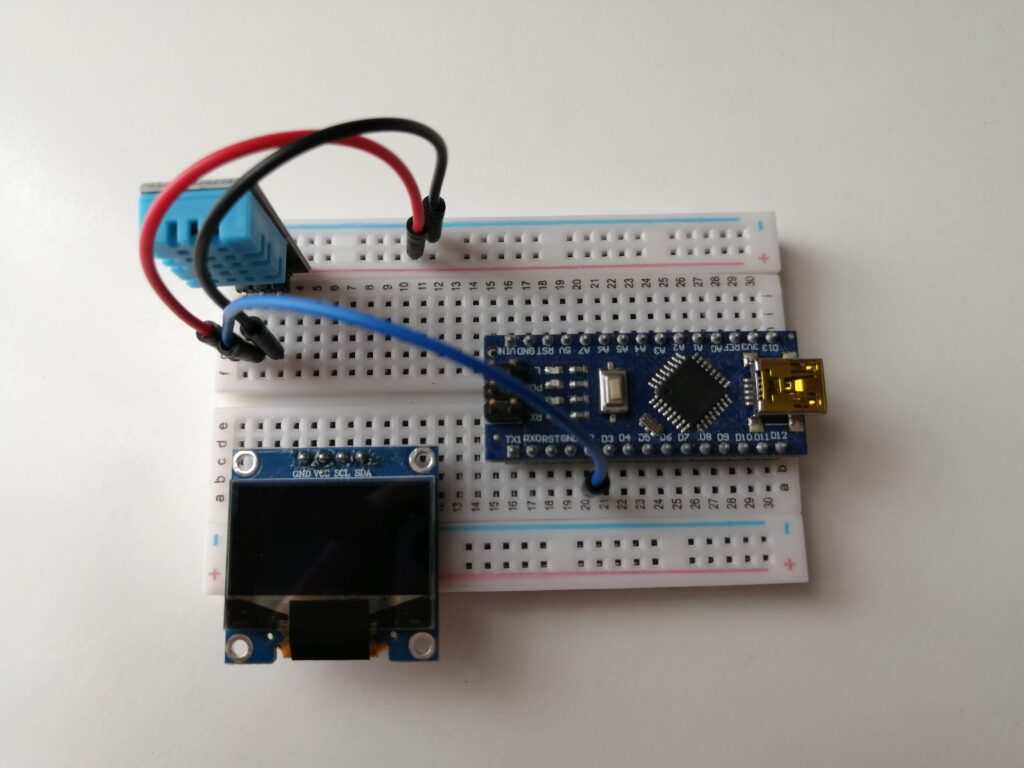
2. Connect the DHT11 Sensor to the Arduino
| DHT11 Sensor | Arduino | Breadboard |
| OUT | D2 | |
| + | + | |
| – | – |
3. Connect the OLED Display to the Arduino
| OLED Display | Arduino | Breadboard |
| GND | – | |
| VCC | + | |
| SCL | A5 | |
| SDA | A4 |
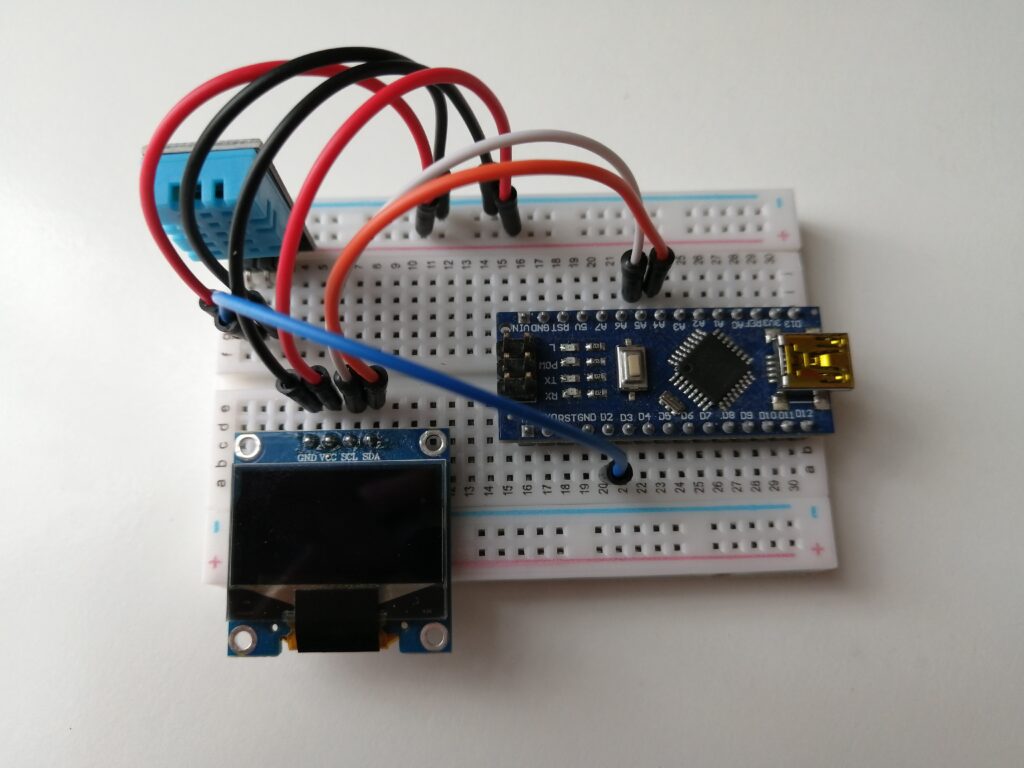
A4/SDA) and A5/SCL are Arduino I2C Pins. The I2C protocol uses two lines to send and receive data: a serial data (SDA) line and a serial clock (SCL) line. With I2C, we can connect multiple devices only using two wires. SCL is used to synchronously clock data. SDA is used to transmit data to or from target devices. The clock signal acts as a metronome. It synchronizes the transfer of serial data, indicating to the devices the correct time to capture each bit. Visit Inter-Integrated Circuit (I2C) Protocol for more information.
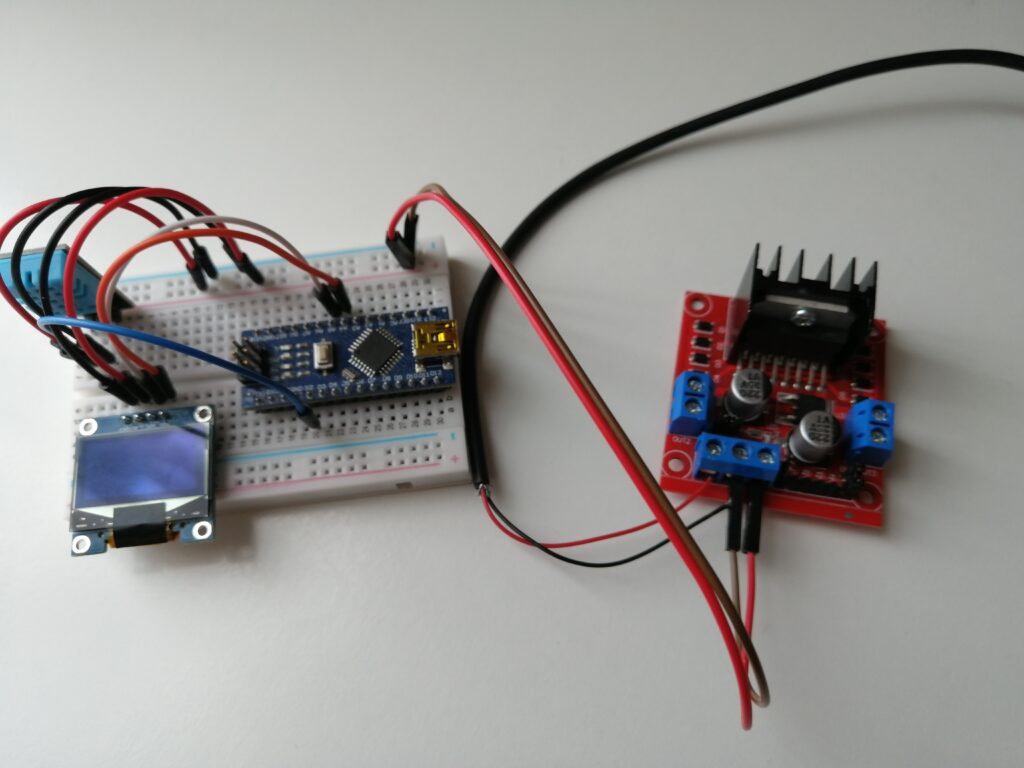
4. Connect the Power to the L298N Motor Driver
| L298N Motor Driver | USB Adapter | Breadboard |
| 12V | Power Wire (red) | |
| GND | Ground Wire (black) | – |
| 5V | + |
5. Connect the L298N Motor Driver to the Arduino
| L298N Motor Driver | Arduino |
| ENA | D3 |
| IN1 | D4 |
| IN2 | D5 |
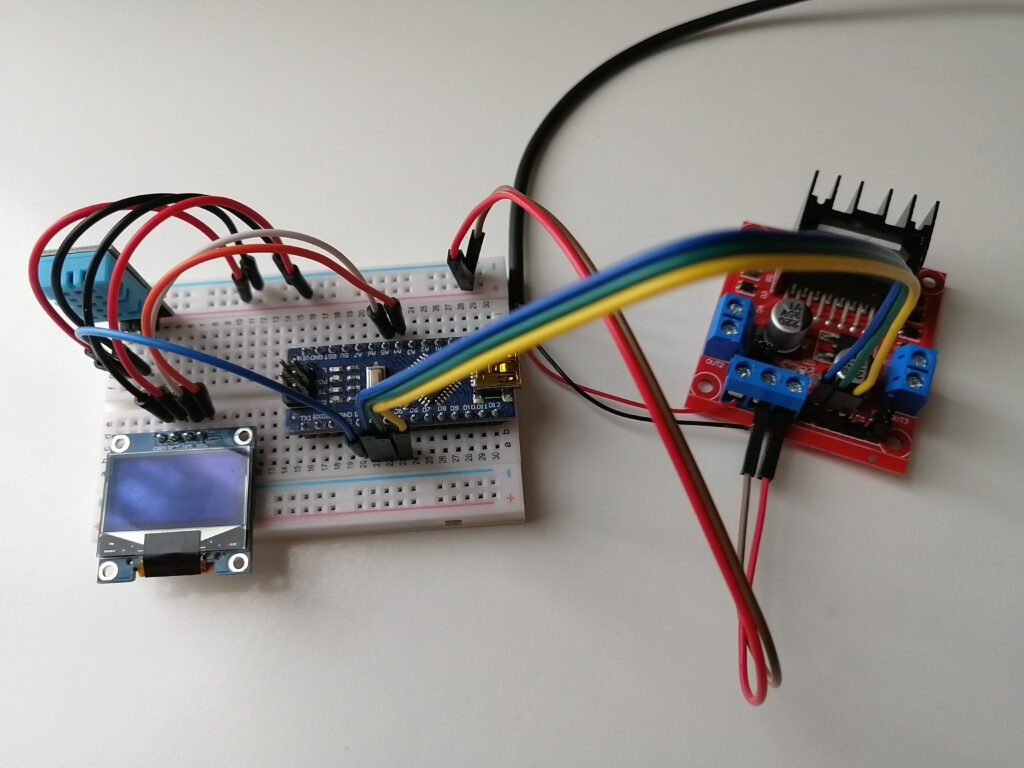
Remove the Jumper on the ENA pin before connect it to the Arduino.
6. Connect Arduino’s 5V and GND to the Breadboard
| Arduino | Breadboard |
| 5V | + |
| GND | – |
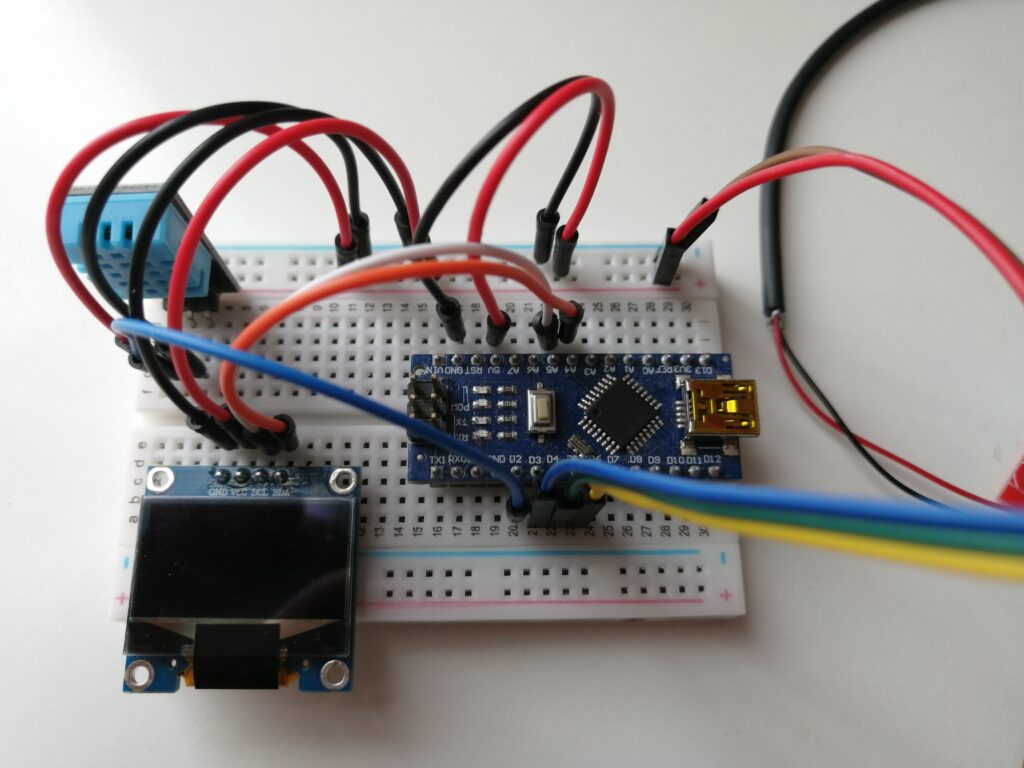
7. Connect the Fan to the OUT1 and OUT2 of the L298N
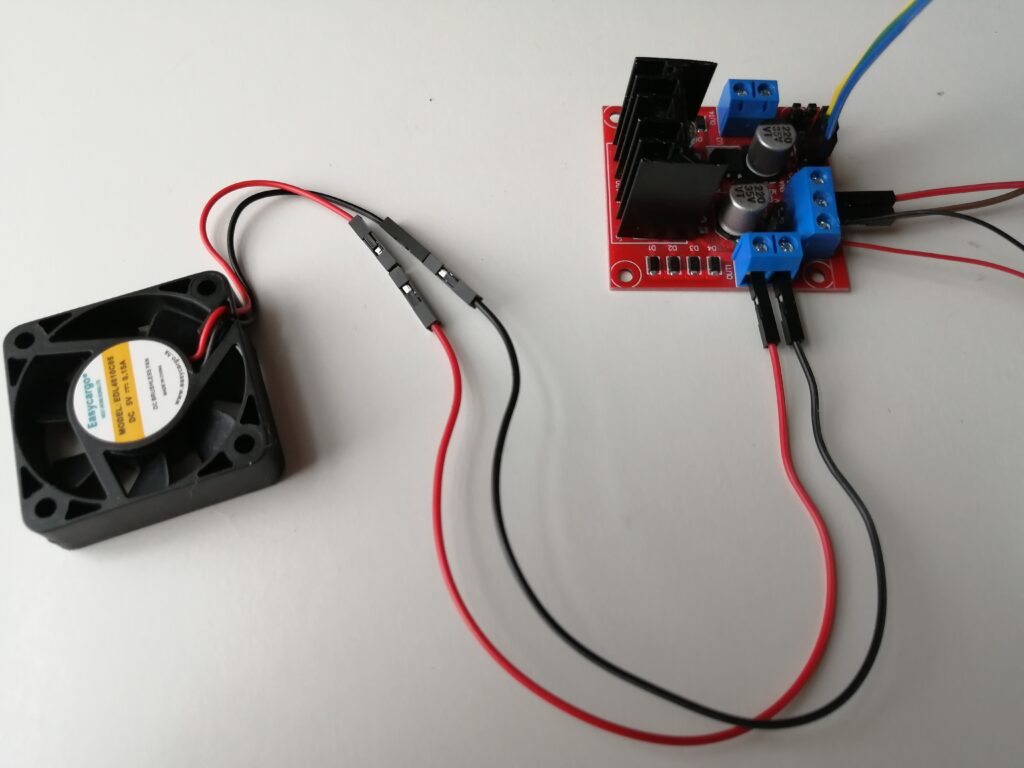
Arduino Code
#include <Wire.h>   //  Built-in library to use I2C
#include <Adafruit_GFX.h>  // Adafruit_GFX and Adafruit_SSD1306 - write to the display
#include <Adafruit_SSD1306.h>
#include <DHT.h>  // Read temperature

#define SCREEN_WIDTH 128 // OLED display width, in pixels
#define SCREEN_HEIGHT 64 // OLED display height, in pixels
#define SCREEN_I2C_ADDRESS 0x3C // Screen I2C address
#define OLED_RESET     4 // Reset pin # (or -1 if sharing Arduino reset pin)

// Declaration for an SSD1306 display connected to I2C (SDA, SCL pins)
// Create a display object and pass in 4 arguments: width, height, a reference to the wire object from Wire library, and OLED reset pin
Adafruit_SSD1306 display(SCREEN_WIDTH, SCREEN_HEIGHT, &Wire, OLED_RESET);

#define DHTPIN 2   // Digital pin connected to the DHT sensor
#define DHTTYPE  DHT11   // DHT 11

// Create a dht object
DHT dht(DHTPIN, DHTTYPE);

#define MOTOR_PIN_ENA 3  // Enable pin for motor driver (PWM pin)
#define MOTOR_PIN_IN1 4  // Input pin 1 for motor driver
#define MOTOR_PIN_IN2 5  // Input pin 2 for motor driver

// Temperature threshold to adjust motor speed
#define TEMPERATURE_THRESHOLD1 32
#define TEMPERATURE_THRESHOLD2 29


void setup() {
  Serial.begin(9600);

  // Initialize the display object
  display.begin(SSD1306_SWITCHCAPVCC, SCREEN_I2C_ADDRESS);  // SSD1306_SWITCHCAPVCC = generate display voltage from 3.3V internally

  display.setTextSize(1);  // Text size
  display.setTextColor(WHITE);  // Text color
  display.clearDisplay(); // Clear display buffer

  // Initialize the dht object
  dht.begin();
}

void loop() {
  // Delay between measurements.
  delay(1000);

  // Read temperature
  float t = dht.readTemperature();

  // Print temperature data
  if (isnan(t)) { // If reading is not a number
    Serial.println(F("Error reading temperature!"));
  }
  else {
    display.setCursor(25,2);  // Position the cursor where we want to draw the pixels on
    display.print("Temperature: ");
    display.setCursor(35,15);
    display.print(t);
    display.print(" C");
    display.println();
    display.display();
  }

  // Adjust motor speed based on temperature
  if (t > TEMPERATURE_THRESHOLD1) {
    // Increase motor speed
    analogWrite(MOTOR_PIN_ENA, 255);    // Set the motor speed to maximum (255)
    digitalWrite(MOTOR_PIN_IN1, HIGH);  // Set motor direction (forward)
    digitalWrite(MOTOR_PIN_IN2, LOW);
    display.setCursor(25,40);
    display.print("Motor Speed: Max");
    display.display();
  }
  else if (t > TEMPERATURE_THRESHOLD2) {
    // Increase motor speed
    analogWrite(MOTOR_PIN_ENA, 150);    // Set the motor speed to a value (150)
    digitalWrite(MOTOR_PIN_IN1, HIGH);  // Set motor direction (forward)
    digitalWrite(MOTOR_PIN_IN2, LOW);
    display.setCursor(25,40);
    display.print("Motor Speed: Med");
    display.display();
  }
  else {
    // Decrease motor speed
    analogWrite(MOTOR_PIN_ENA, 80);    // Set the motor speed to a lower value (80)
    digitalWrite(MOTOR_PIN_IN1, HIGH);  // Set motor direction (forward)
    digitalWrite(MOTOR_PIN_IN2, LOW);
    display.setCursor(25,40);
    display.print("Motor Speed: Low");
    display.display();
  }

  display.clearDisplay();

}