Using a rotary encoder for text input on an LCD display is a common way to build simple user interfaces for Arduino projects. The encoder allows the user to scroll through characters (A-Z, 0-9, etc.) by rotating it and select a character by pressing its built-in push-button (if available).
🔌 Circuit Diagram and Wiring
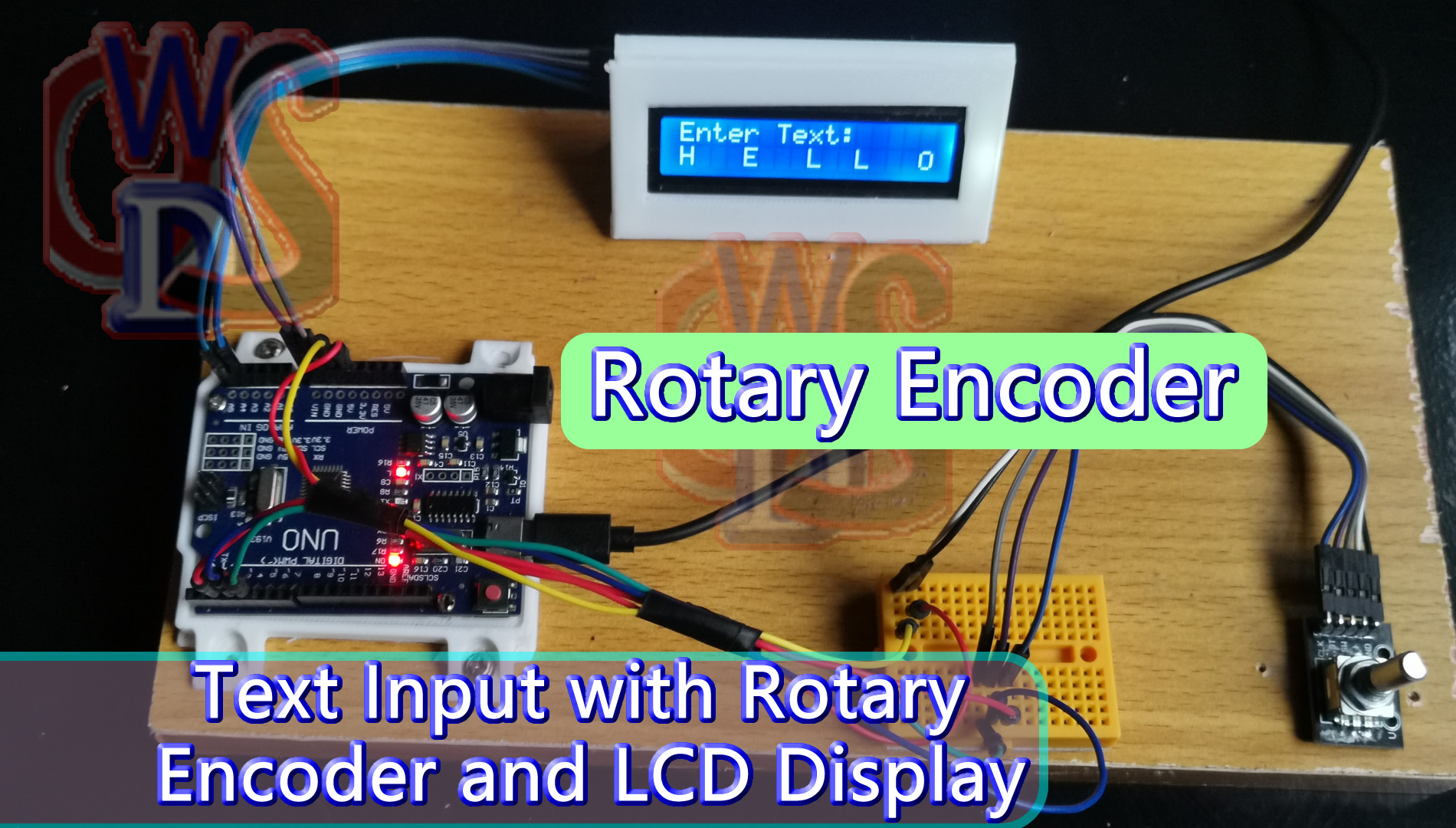
This guide assumes the use of a standard 16×2 character LCD with an I2C backpack (which simplifies wiring) and a KY-040 Rotary Encoder module (which typically includes pull-up resistors and a switch).
Components Needed
- Arduino Uno (or compatible board)
- 16×2 I2C LCD Module
- KY-040 Rotary Encoder Module
- Jumper Wires
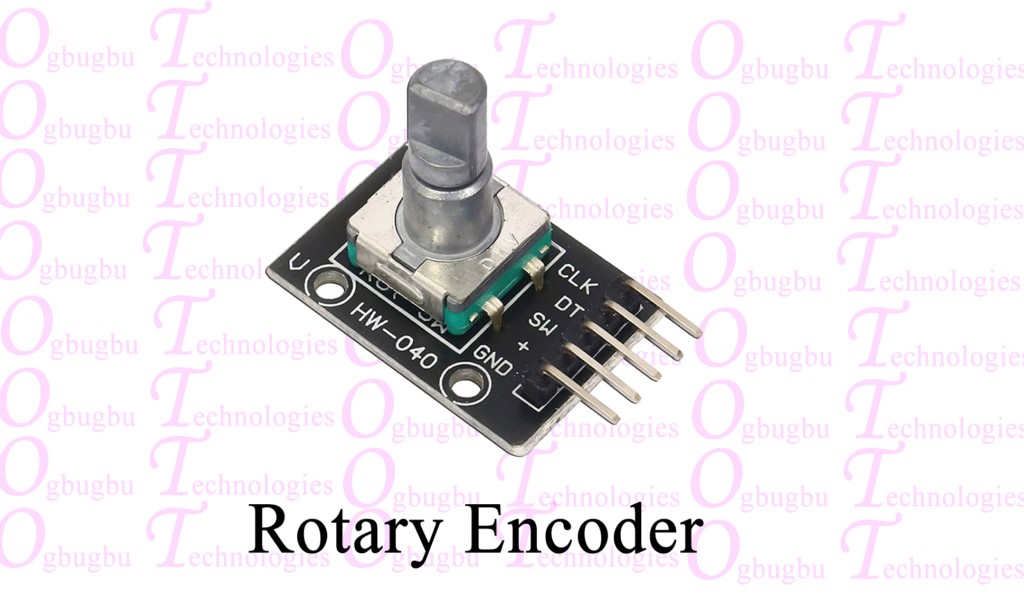
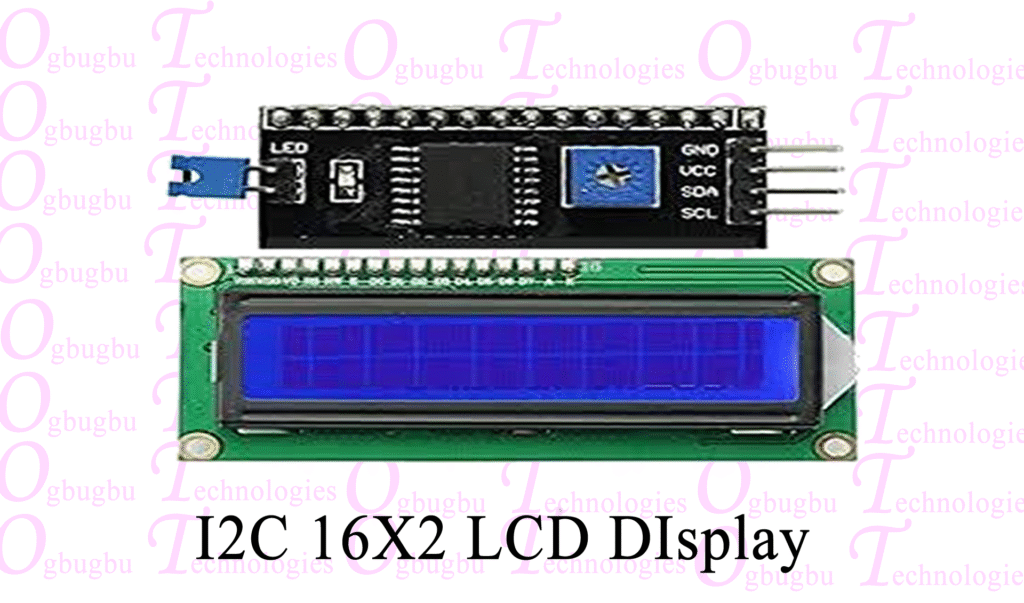
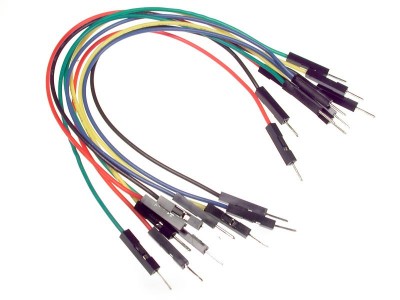
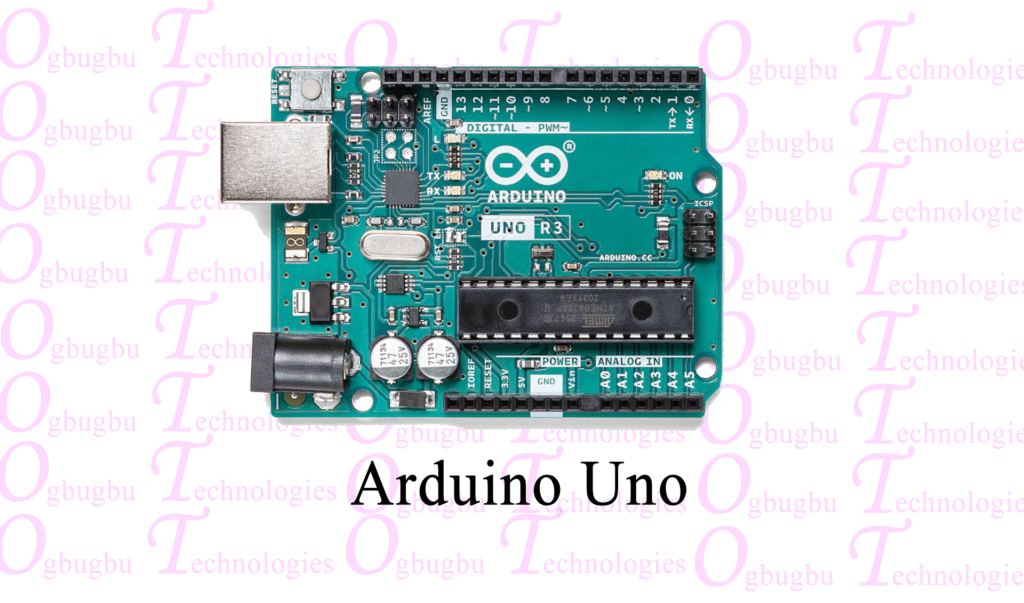
Connection Table
| Component Pin | Arduino Uno Pin | Description |
| I2C LCD | ||
| GND | GND | Ground |
| VCC | 5V | Power |
| SDA | A4 (Analog Pin) | I2C Data |
| SCL | A5 (Analog Pin) | I2C Clock |
| Rotary Encoder | ||
| GND | GND | Ground |
| + (VCC) | 5V | Power |
| CLK (A) | Digital Pin 2 | Encoder Output A |
| DT (B) | Digital Pin 3 | Encoder Output B |
| SW (Switch) | Digital Pin 4 | Push-Button Switch |
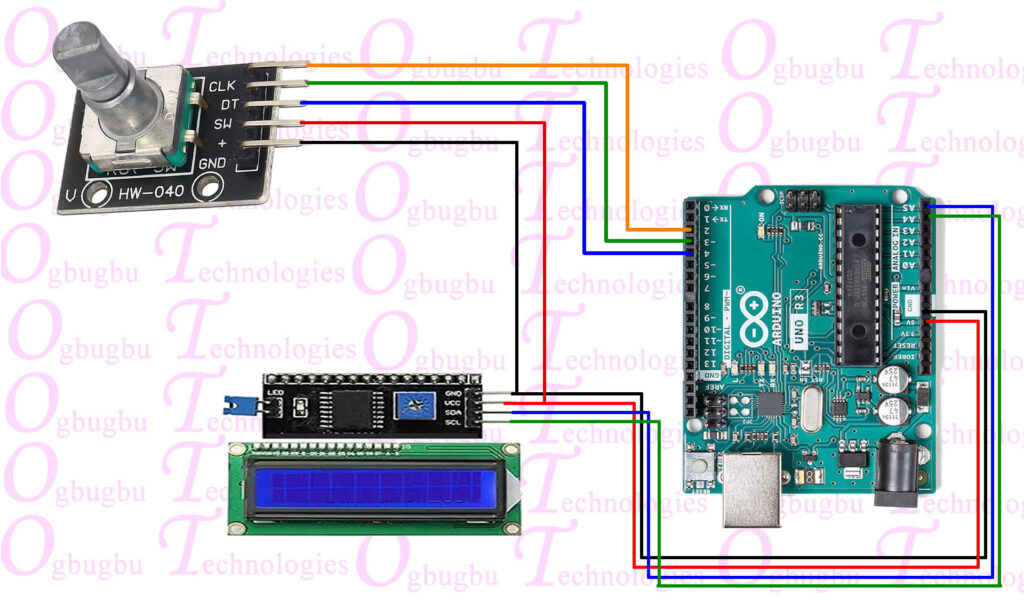
Physical Diagram
Step by Step Video Explanation
Note on Pins 2 and 3: It’s best practice to connect the encoder’s CLK and DT pins to the Arduino’s interrupt-capable pins (2 and 3 on the Uno) for accurate reading of rotation, especially for fast turning.
💻 Arduino Code Example (Conceptual)
Implementing full text input requires managing the current character selection, the cursor position, and the string being built. This conceptual code snippet outlines the essential logic using the LiquidCrystal_I2C library and interrupt handling for the encoder.
Prerequisites
You will need to install two libraries in your Arduino IDE:
LiquidCrystal_I2Cfor the LCD.- A specialized library for the Rotary Encoder (or implement interrupt-based code yourself, as shown conceptually below).
Arduino Project Code
#include <LiquidCrystal_I2C.h>

// Define I2C address (may be 0x27, 0x3F, etc. check your module)
LiquidCrystal_I2C lcd(0x27, 16, 2);

// Define Encoder Pins
#define ENCODER_CLK_PIN 2 // Connect to CLK (A) on Encoder
#define ENCODER_DT_PIN 3  // Connect to DT (B) on Encoder
#define ENCODER_SW_PIN 4  // Connect to SW on Encoder

// Global variables for encoder and text input state
volatile int encoderPos = 0;
volatile bool turnDetected = false;
volatile unsigned long lastISRTime = 0;
char currentCharacter = 'A';
int cursorCol = 0;
String inputText = "";
const char charSet[] = " ABCDEFGHIJKLMNOPQRSTUVWXYZ0123456789"; // Character pool

void readEncoder() {
  // Simple Interrupt Service Routine (ISR) for reading the encoder
  unsigned long currentTime = micros();
  if (currentTime - lastISRTime < 2000) { // Debounce check (2ms)
    return;
  }

  // Read the current state of CLK and DT
  int CLK = digitalRead(ENCODER_CLK_PIN);
  int DT = digitalRead(ENCODER_DT_PIN);

  if (CLK != DT) {
    encoderPos++; // Clockwise (or vice versa, depends on wiring)
  } else {
    encoderPos--; // Counter-clockwise
  }

  turnDetected = true;
  lastISRTime = currentTime;
}

void setup() {
  Serial.begin(9600);

  // Initialize LCD
  lcd.init();
  lcd.backlight();
  lcd.print("Enter Text:");

  // Setup Rotary Encoder pins
  pinMode(ENCODER_CLK_PIN, INPUT_PULLUP);
  pinMode(ENCODER_DT_PIN, INPUT_PULLUP);
  pinMode(ENCODER_SW_PIN, INPUT_PULLUP);

  // Attach interrupt for encoder CLK pin
  attachInterrupt(digitalPinToInterrupt(ENCODER_CLK_PIN), readEncoder, CHANGE);
}

void loop() {
  static int lastEncoderPos = 0;
  static long lastButtonPress = 0;
  const long debounceDelay = 50;

  // --- Rotary Encoder Rotation Logic ---
  if (turnDetected) {
    turnDetected = false;

    // Calculate the change in encoder position
    int delta = encoderPos - lastEncoderPos;
    lastEncoderPos = encoderPos;

    // Adjust the current character index within the character set
    int charIndex = 0;
    for(int i = 0; i < strlen(charSet); i++) {
        if (charSet[i] == currentCharacter) {
            charIndex = i;
            break;
        }
    }

    charIndex += delta; // Apply change

    // Wrap around logic
    if (charIndex >= strlen(charSet)) {
      charIndex = 0;
    } else if (charIndex < 0) {
      charIndex = strlen(charSet) - 1;
    }

    currentCharacter = charSet[charIndex];

    // Update the LCD display at the current cursor position
    lcd.setCursor(cursorCol, 1);
    lcd.print(currentCharacter);
    lcd.setCursor(cursorCol, 1); // Set cursor back for visual confirmation
  }

  // --- Rotary Encoder Button Press Logic ---
  int switchState = digitalRead(ENCODER_SW_PIN);
  if (switchState == LOW && millis() - lastButtonPress > debounceDelay) {
    lastButtonPress = millis();

    if (cursorCol < 15) {
        // Confirm the selected character and move to the next column
        inputText += currentCharacter;
        cursorCol++;
        currentCharacter = 'A'; // Reset selection to 'A' (or ' ') for next character

    } else {
        // String is complete (16 characters max on 16x2) - process input
        inputText += currentCharacter;
        lcd.clear();
        lcd.setCursor(0, 0);
        lcd.print("FINAL TEXT:");
        lcd.setCursor(0, 1);
        lcd.print(inputText);

        // Reset for next input (Optional)
        delay(3000);
        lcd.clear();
        lcd.print("Enter Text:");
        inputText = "";
        cursorCol = 0;
        currentCharacter = 'A';
    }
  }
}Code Explanation
- Libraries and Definitions: The code initializes the LCD with its I2C address and defines the digital pins for the Rotary Encoder (CLK, DT, and SW).
- Interrupt Service Routine (
readEncoder): This function is called every time the state of the CLK pin changes. It reads both the CLK and DT pins to determine the direction of rotation (quadrature encoding) and increments or decrementsencoderPos. A software debounce is included usingmicros()to prevent multiple readings from contact bounce. - Rotation Logic: In the
loop(), when a turn is detected, the code calculates the change (delta) in the encoder position. This change is used to scroll through thecharSetarray (which contains all available characters). The selected character is then displayed at the currentcursorColon the second line of the LCD. - Button Press Logic: When the switch (SW) is pressed (reading
LOW), the code performs two main actions:- Confirm Character: It appends the
currentCharacterto theinputTextstring and advances thecursorCol. It then resetscurrentCharacterfor the selection of the next letter. - Finalize Input: If the maximum number of characters (16 for a 16×2 screen) is reached, it displays the complete
inputTextand resets the process.
- Confirm Character: It appends the