Gas it ever crossed your mind to build a remote-controlled car that doesn’t rely on expensive Bluetooth modules or bulky controllers? By using the ESP8266 Dev Board, you can create a high-performance RC car controlled entirely through your smartphone via Wi-Fi. In this guide, we’ll walk through the hardware assembly, wiring and software setup to get your car moving.
Components Required:
- 1x ESP8266 Dev Board
- 1x L298N Motor Driver Module
- 4x BO Motors
- 4x Wheels (65mm)
- 2x 18650 Li-ion Batteries
- 1x 18650 2-cell Battery Holder
- Cardboard (For the chassis)
- Jumper wires
- Tools: Hot Glue Gun and a Screwdriver
4WD Car – Assembly
Step 1: Motor Cabling and Assembly
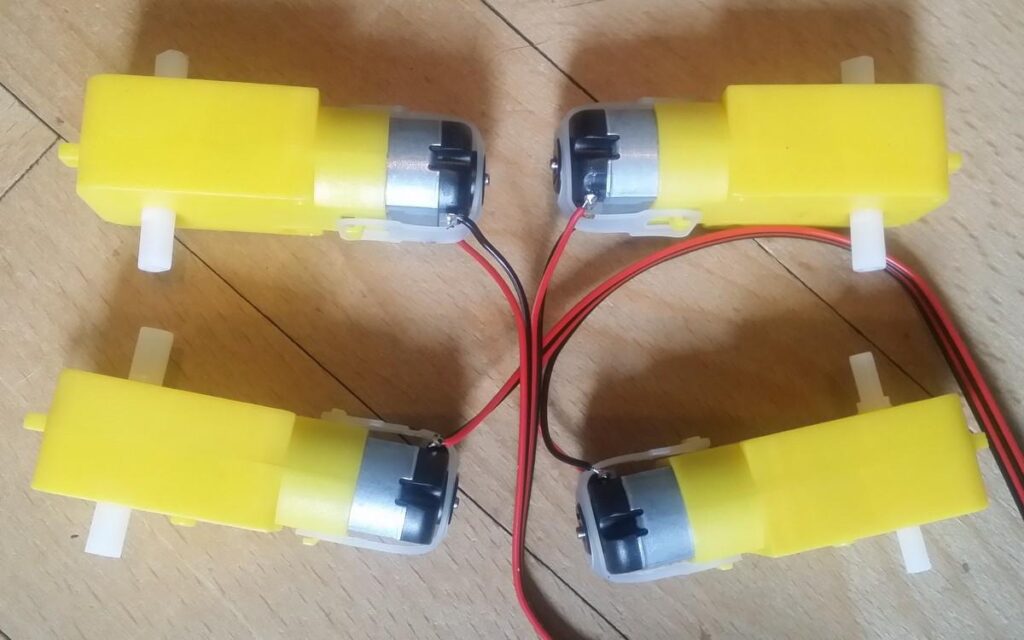
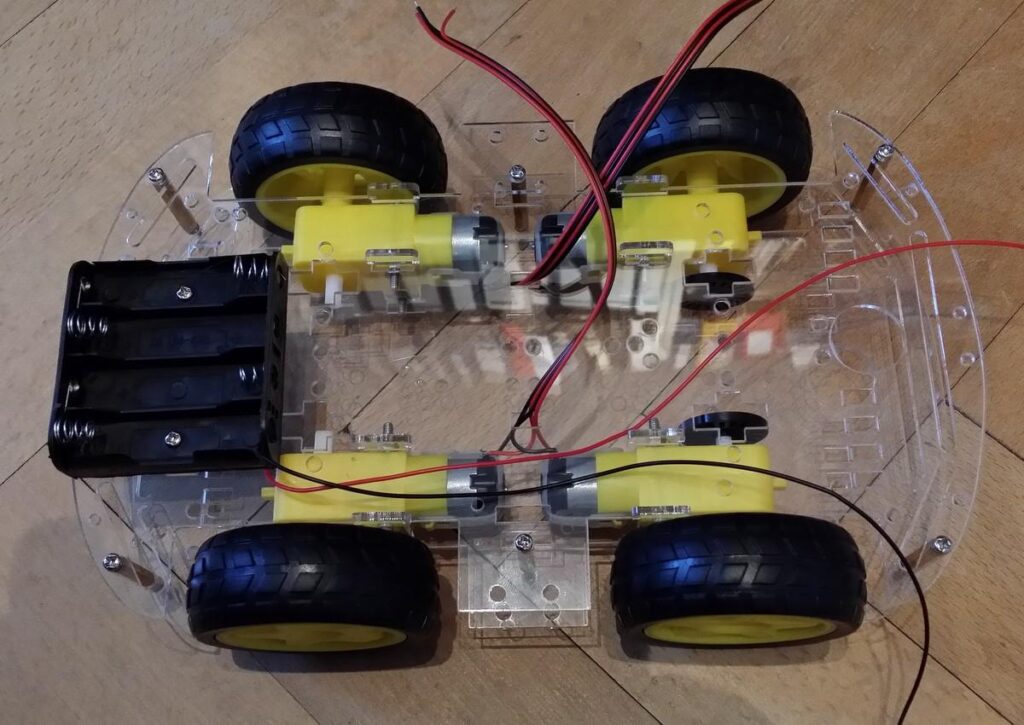
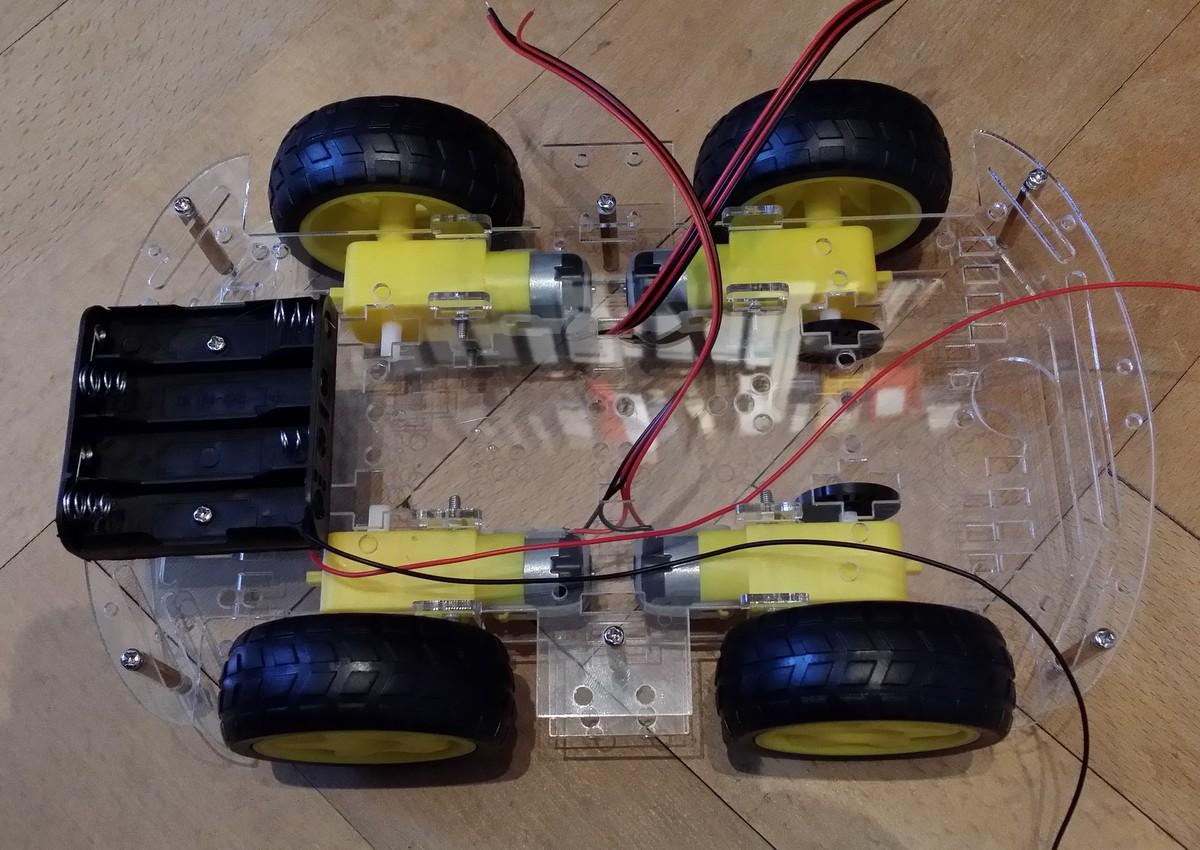
For a 4 WD car all motors of one side should run at the same speed so both motors are supplied by the same power source.
I mounted the motors with the terminals side by side and therefore plus and minus connections must be swapped between the front and left motor. Plus and minus must also be swapped between the left and right motors.
The optical interruptors are useless without slot-type photo interrupters mounted and an elaborated software support, but they look cool in a special way 🙂
See this Video for Ease
Wiring the Motor Driver
- Motors: Connect the wires from the two motors on the left side to the OUT1 & OUT2 terminals on the L298N. Connect the two right-side motors to OUT3 & OUT4.
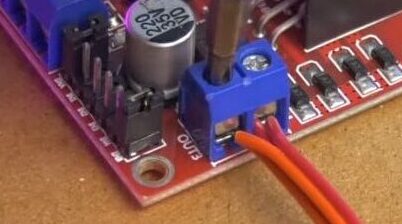
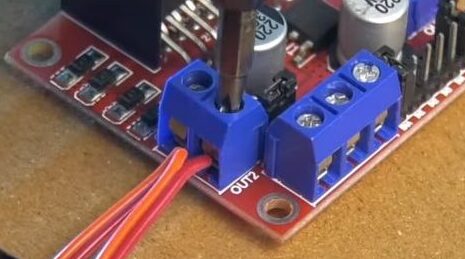
- Power: Connect the positive wire from the battery holder to the 12V terminal on the L298N. Connect the negative wire to the GND terminal.
- Powering the ESP 8266: Run a wire from the L298N’s +5V terminal to the VIN pin on the NodeMCU, and connect the GND from the L298N to the GND pin on the NodeMCU.
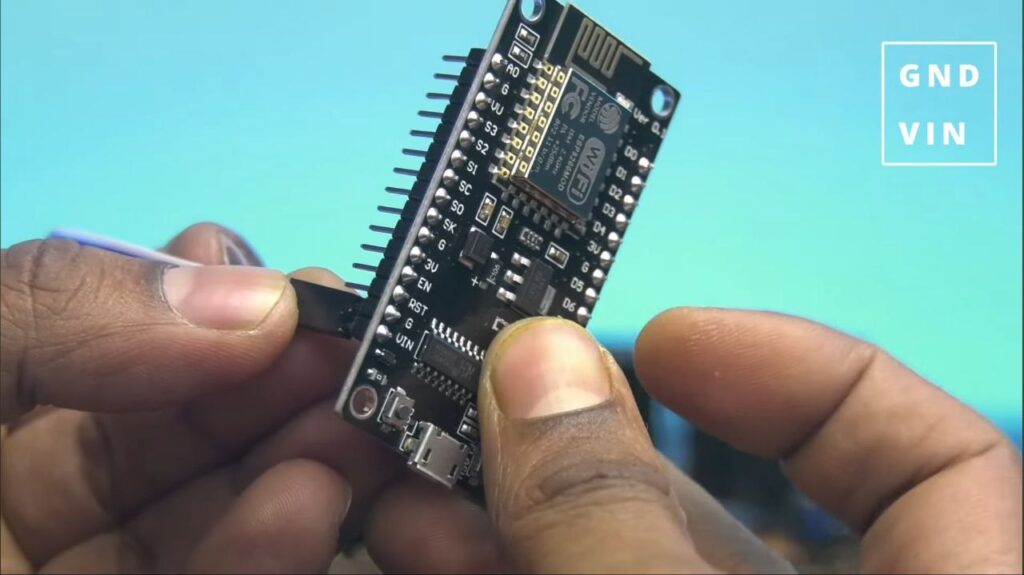
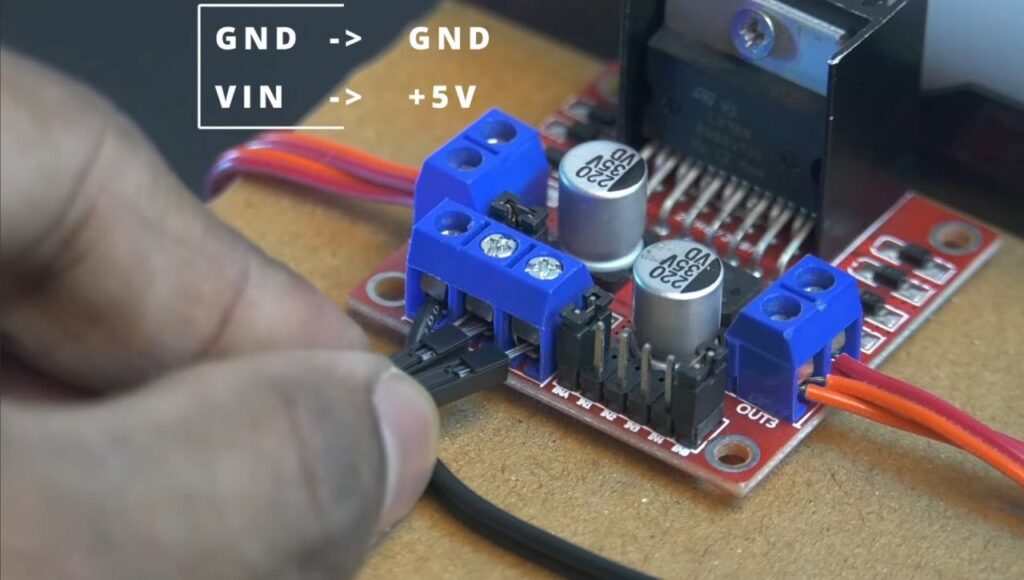
Step 5: Logic Connections (ESP8266 to L298N)
Connect the following pins using jumper wires:
- D5: IN1
- D6: IN2
- D7: IN3
- D8: IN4
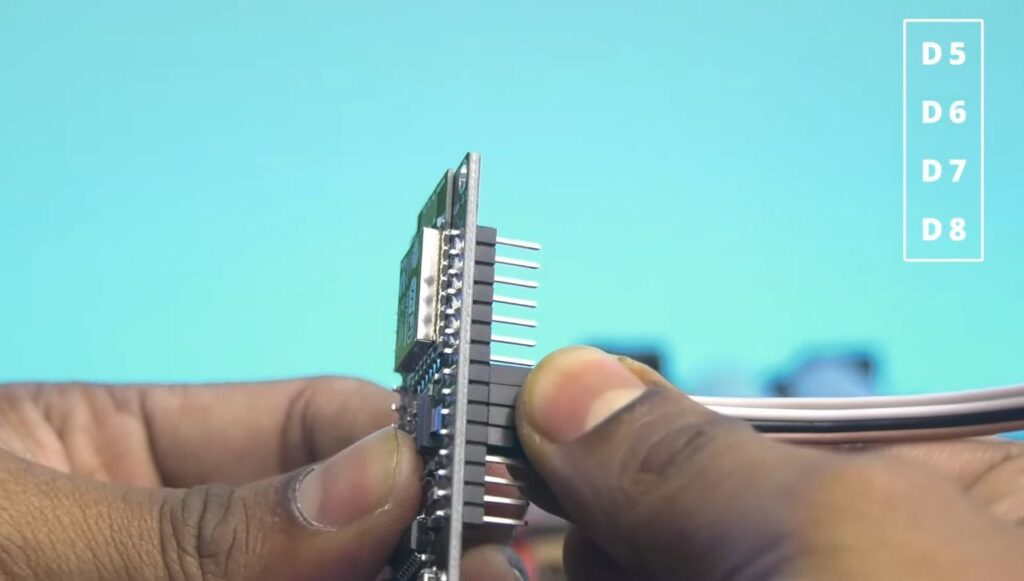
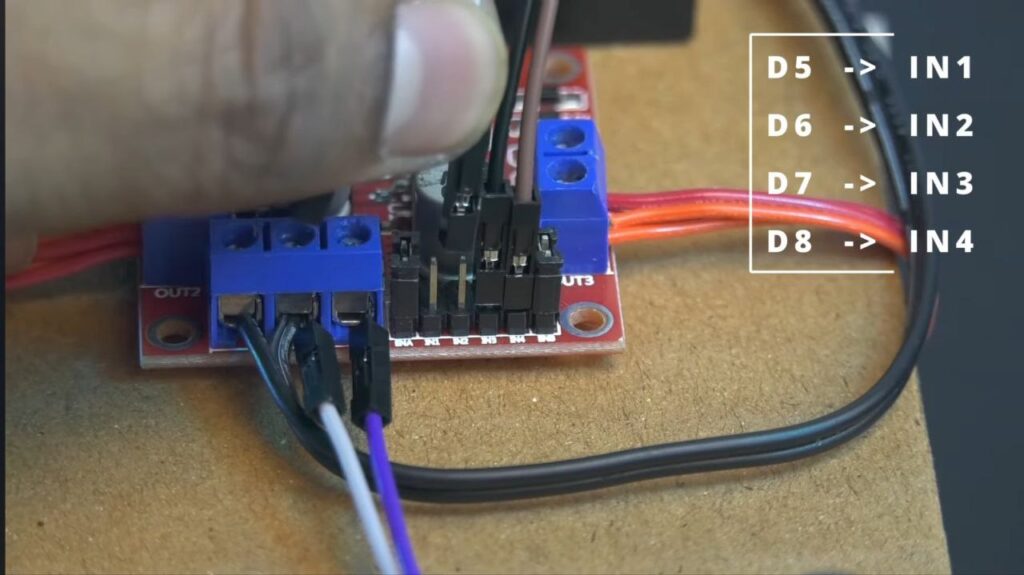
After the wiring of ESP 8266 Board is complete, fix the ESP 8266 Dev Board at the front or side where it’s easily accessible for programming.
NOTE: Before mounting the wheels, we have to upload the Code. So, put the battery switch OFF and then connect the ESP 8266 board to the computer via USB.
Step 6: Software Setup
1. Prepare the Arduino IDE:
- Open Arduino IDE on your computer.
- Go to File > Preferences.
- In “Additional Boards Manager URLs,” paste this link and click OK: https://arduino.esp8266.com/stable/package_esp8266com_index.json
- Go to Tools > Board > Boards Manager, search for “esp8266,” and click Install.
2. Uploading the Code
- Connect your NodeMCU to your computer via USB.
- In the IDE, go to Tools > Board and select NodeMCU 1.0 (ESP-12E Module).
- Select the correct Port.
- Upload your Code (Ensure the code matches the pin definitions: D5, D6, D7, D8).
- Once “Done Uploading” appears, disconnect the USB.
Step 7: Final Testing
- Attach the Wheels: Press the wheels onto the motor shafts.
- Power On: Flip the toggle switch on your battery pack.
- Install the App: Download ESP8266 Wi-Fi Robot Car controller app from the Play Store.
- Connect to Wi-Fi: Open your phone’s Wi-Fi settings and connect to the network created by the ESP 8266 Board.
- Drive: Open the app, use the on-screen arrows and just drive away!
Arduino Code
#include <ESP8266WiFi.h>
#include <ESP8266WebServer.h>
#include <ArduinoOTA.h>

// connections for drive Motor FR & BR
//int enA = D3;
int in1 = D5;
int in2 = D6;
// connections for drive Motor FL & BL
int in3 = D7;
int in4 = D8;
//int enB = D6;

const int buzPin = D0;      // set digital pin D7 as buzzer pin (use active buzzer)
const int ledPin = D1;      // set digital pin D8 as LED pin (use super bright LED)
const int wifiLedPin = D2;  // set digital pin D0 as indication, the LED turn on if NodeMCU connected to WiFi as STA mode

String command;    // String to store app command state.
int SPEED = 122;
int speed_Coeff = 3;

ESP8266WebServer server(80);  // Create a webserver object that listens for HTTP request on port 80

unsigned long previousMillis = 0;

String sta_ssid = "";      // set Wifi networks you want to connect to
String sta_password = "";  // set password for Wifi networks


void setup() {
  Serial.begin(115200);  // set up Serial library at 115200 bps
  Serial.println();
  Serial.println("*WiFi Robot Remote Control Mode - L298N 2A*");
  Serial.println("------------------------------------------------");

  pinMode(buzPin, OUTPUT);      // sets the buzzer pin as an Output
  pinMode(ledPin, OUTPUT);      // sets the LED pin as an Output
  pinMode(wifiLedPin, OUTPUT);  // sets the Wifi LED pin as an Output
  digitalWrite(buzPin, LOW);
  digitalWrite(ledPin, LOW);
  digitalWrite(wifiLedPin, HIGH);

  // Set all the motor control pins to outputs
  pinMode(in1, OUTPUT);
  pinMode(in2, OUTPUT);
  pinMode(in3, OUTPUT);
  pinMode(in4, OUTPUT);


  // Turn off motors - Initial state
  digitalWrite(in1, LOW);
  digitalWrite(in2, LOW);
  digitalWrite(in3, LOW);
  digitalWrite(in4, LOW);


  // set NodeMCU Wifi hostname based on chip mac address
  String chip_id = String(ESP.getChipId(), HEX);
  int i = chip_id.length() - 4;
  chip_id = chip_id.substring(i);
  chip_id = "WiFi_RC_Car-" + chip_id;
  String hostname(chip_id);

  Serial.println();
  Serial.println("Hostname: " + hostname);

  // first, set NodeMCU as STA mode to connect with a Wifi network
  WiFi.mode(WIFI_STA);
  WiFi.begin(sta_ssid.c_str(), sta_password.c_str());
  Serial.println("");
  Serial.print("Connecting to: ");
  Serial.println(sta_ssid);
  Serial.print("Password: ");
  Serial.println(sta_password);

  // try to connect with Wifi network about 10 seconds
  unsigned long currentMillis = millis();
  previousMillis = currentMillis;
  while (WiFi.status() != WL_CONNECTED && currentMillis - previousMillis <= 10000) {
    delay(500);
    Serial.print(".");
    currentMillis = millis();
  }

  // if failed to connect with Wifi network set NodeMCU as AP mode
  if (WiFi.status() == WL_CONNECTED) {
    Serial.println("");
    Serial.println("*WiFi-STA-Mode*");
    Serial.print("IP: ");
    Serial.println(WiFi.localIP());
    digitalWrite(wifiLedPin, LOW);  // Wifi LED on when connected to Wifi as STA mode
    delay(3000);
  } else {
    WiFi.mode(WIFI_AP);
    WiFi.softAP(hostname.c_str());
    IPAddress myIP = WiFi.softAPIP();
    Serial.println("");
    Serial.println("WiFi failed connected to " + sta_ssid);
    Serial.println("");
    Serial.println("*WiFi-AP-Mode*");
    Serial.print("AP IP address: ");
    Serial.println(myIP);
    digitalWrite(wifiLedPin, HIGH);  // Wifi LED off when status as AP mode
    delay(3000);
  }


  server.on("/", HTTP_handleRoot);     // call the 'handleRoot' function when a client requests URI "/"
  server.onNotFound(HTTP_handleRoot);  // when a client requests an unknown URI (i.e. something other than "/"), call function "handleNotFound"
  server.begin();                      // actually start the server

  ArduinoOTA.begin();  // enable to receive update/uploade firmware via Wifi OTA
}

void loop() {
  ArduinoOTA.handle();    // listen for update OTA request from clients
  server.handleClient();  // listen for HTTP requests from clients

  command = server.arg("State");  // check HTPP request, if has arguments "State" then saved the value
  if (command == "F") Forward();  // check string then call a function or set a value
  else if (command == "B") Backward();
  else if (command == "R") TurnRight();
  else if (command == "L") TurnLeft();
  else if (command == "G") ForwardLeft();
  else if (command == "H") BackwardLeft();
  else if (command == "I") ForwardRight();
  else if (command == "J") BackwardRight();
  else if (command == "S") Stop();
  else if (command == "V") BeepHorn();
  else if (command == "W") TurnLightOn();
  else if (command == "w") TurnLightOff();
  else if (command == "0") SPEED = 60;
  else if (command == "1") SPEED = 70;
  else if (command == "2") SPEED = 81;
  else if (command == "3") SPEED = 95;
  else if (command == "4") SPEED = 105;
  else if (command == "5") SPEED = 122;
  else if (command == "6") SPEED = 150;
  else if (command == "7") SPEED = 196;
  else if (command == "8") SPEED = 272;
  else if (command == "9") SPEED = 400;
  else if (command == "q") SPEED = 1023;
}

// function prototypes for HTTP handlers
void HTTP_handleRoot(void) {
  server.send(200, "text/html", "");  // Send HTTP status 200 (Ok) and send some text to the browser/client

  if (server.hasArg("State")) {
    Serial.println(server.arg("State"));
  }
}

void handleNotFound() {
  server.send(404, "text/plain", "404: Not found");  // Send HTTP status 404 (Not Found) when there's no handler for the URI in the request
}

// function to move forward
void Forward() {
  analogWrite(in1, SPEED);
  digitalWrite(in2, LOW);
  analogWrite(in3, SPEED);
  digitalWrite(in4, LOW);
}

// function to move backward
void Backward() {
  digitalWrite(in1, LOW);
  analogWrite(in2, SPEED);
  digitalWrite(in3, LOW);
  analogWrite(in4, SPEED);
}

// function to turn right
void TurnRight() {
  digitalWrite(in1, LOW);
  analogWrite(in2, SPEED);
  analogWrite(in3, SPEED);
  digitalWrite(in4, LOW);
}

// function to turn left
void TurnLeft() {
  analogWrite(in1, SPEED);
  digitalWrite(in2, LOW);
  digitalWrite(in3, LOW);
  analogWrite(in4, SPEED);
}

// function to move forward left
void ForwardLeft() {
  analogWrite(in1, SPEED);
  digitalWrite(in2, LOW);
  analogWrite(in3, SPEED / speed_Coeff);
  digitalWrite(in4, LOW);
}

// function to move backward left
void BackwardLeft() {
  digitalWrite(in1, LOW);
  analogWrite(in2, SPEED);
  digitalWrite(in3, LOW);
  analogWrite(in4, SPEED / speed_Coeff);
}

// function to move forward right
void ForwardRight() {
  analogWrite(in1, SPEED / speed_Coeff);
  digitalWrite(in2, LOW);
  analogWrite(in3, SPEED);
  digitalWrite(in4, LOW);
}

// function to move backward right
void BackwardRight() {
  digitalWrite(in1, LOW);
  analogWrite(in2, SPEED / speed_Coeff);
  digitalWrite(in3, LOW);
  analogWrite(in4, SPEED);
}

// function to stop motors
void Stop() {
  digitalWrite(in1, LOW);
  digitalWrite(in2, LOW);
  digitalWrite(in3, LOW);
  digitalWrite(in4, LOW);
}

// function to beep a buzzer
void BeepHorn() {
  digitalWrite(buzPin, HIGH);
  delay(150);
  digitalWrite(buzPin, LOW);
  delay(80);
}

// function to turn on LED
void TurnLightOn() {
  digitalWrite(ledPin, HIGH);
}

// function to turn off LED
void TurnLightOff() {
  digitalWrite(ledPin, LOW);
}