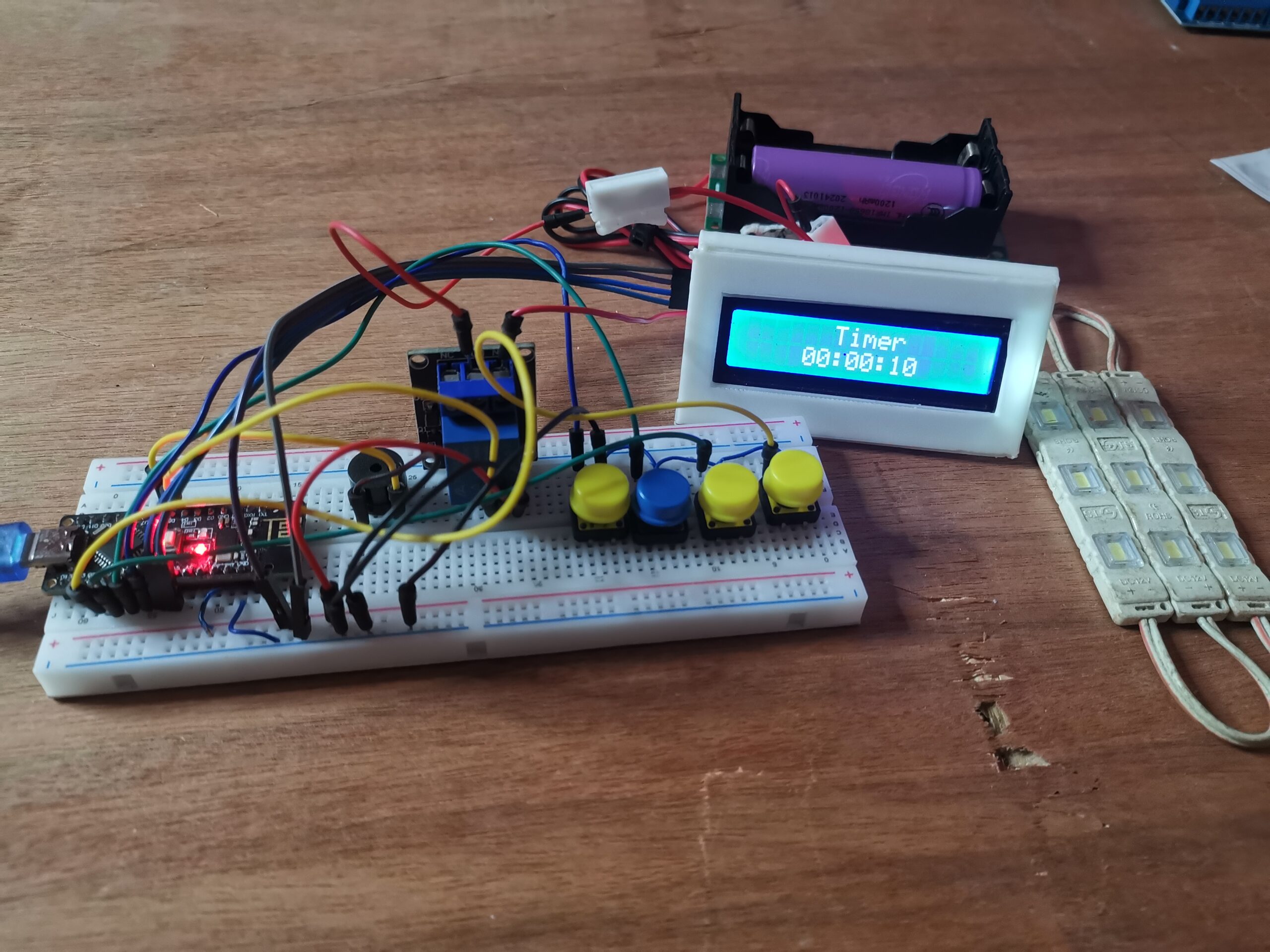
Whether you’re building a kitchen timer, a darkroom exposure controller, or a timed charging station, a programmable relay timer is a classic “must-have” project. This guide breaks down the code and hardware for a professional-grade countdown timer with an LCD interface and EEPROM memory—which means it remembers your last set time even if you unplug it!
The Components: What’s Under the Hood?
To build this project, you need a few specific parts. Here is why each one is vital:
| Component | Purpose |
| Arduino Uno / Nano | The “brain” that processes the logic and counts the seconds. |
| I2C LCD (16×2) | Displays the countdown and the setup menu. The I2C module on the back saves you from wiring 12+ pins, reducing it to just 4. |
| Relay Module (5V) | Acts as a smart switch. It allows the low-power Arduino to turn high-power devices (like a lamp or motor) ON and OFF. |
| Active Buzzer | Provides an audible alert once the timer reaches zero. |
| Push Buttons | Used for user input (Set, Up, Down, and Start/Reset). |
The Wiring Guide
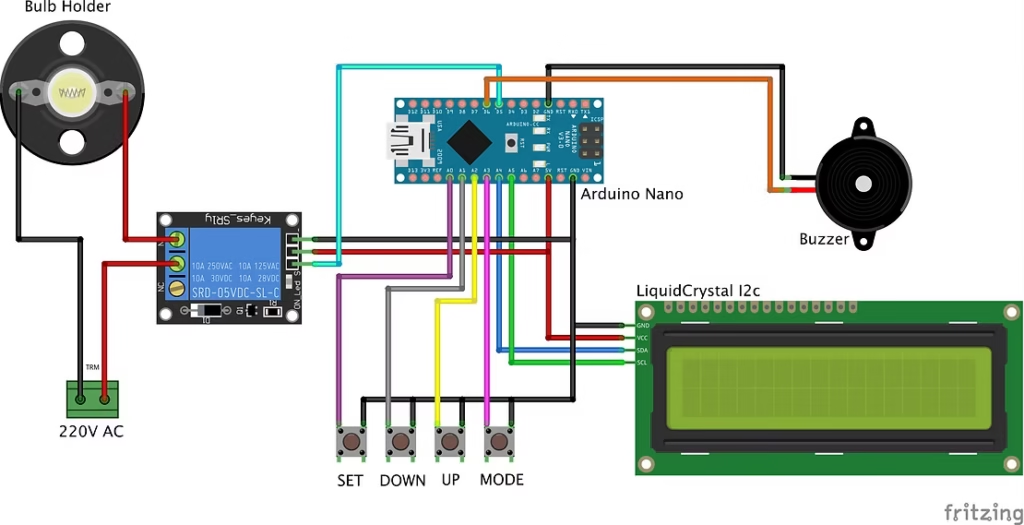
Connecting the components is straightforward if you follow the I2C and Analog pin assignments.
- LCD Display: Connect SDA to A4 and SCL to A5. Power it via the 5V and GND pins.
- Input Buttons: Use pins A0, A1, A2, and A3. These are configured as
INPUT_PULLUP, so you only need to wire the button between the pin and GND. - Relay & Buzzer: Connect the Relay signal to Pin 5 and the Buzzer to Pin 6.
How the Code Works
The code uses three main libraries to keep things running smoothly:
LiquidCrystal_I2C.h: Manages the screen via the I2C protocol.Countimer.h: A specialized library that handles the “ticking” logic in the background so the screen doesn’t flicker.EEPROM.h: This is built into Arduino. It saves yourHH:MM:SSsettings to the chip’s permanent memory.
Key Features of the Script:
- Setting the Time: By tapping the Set button, you cycle through Seconds, Minutes, and Hours. Use Up/Down to adjust the values.
- Memory Save: Every time you adjust the time, the code calls
eeprom_write(). This ensures that if you lose power, your timer doesn’t reset to zero. - The Relay Trigger: When the timer is active (
flag2 == 1), the relay is closed. When the timer hits $00:00:00$, the relay opens and the buzzer triggers a “beep-beep-beep” sequence. - The “Long Press” Reset: We added a custom logic that monitors how long you hold the Set button. If held for more than 1.5 seconds, it wipes the timer back to zero.
Arduino Code
#include <Wire.h>
#include <LiquidCrystal_I2C.h>
#include "Countimer.h"
#include <EEPROM.h>

// Try 0x27 if 0x3F didn't work
LiquidCrystal_I2C lcd(0x27, 16, 2);

Countimer tdown;

#define bt_set    A3
#define bt_up     A2
#define bt_down   A1
#define bt_start  A0

int time_s = 0;
int time_m = 0;
int time_h = 0;

int set = 0;
int flag1=0, flag2=0;

int relay = 5;
int buzzer = 6;

// For Reset Logic
unsigned long buttonPressTime = 0;
bool isPressing = false;

void setup() {
  Serial.begin(9600);

  pinMode(bt_set,   INPUT_PULLUP);
  pinMode(bt_up,    INPUT_PULLUP);
  pinMode(bt_down,  INPUT_PULLUP);
  pinMode(bt_start, INPUT_PULLUP);

  pinMode(relay, OUTPUT);
  pinMode(buzzer, OUTPUT);

  digitalWrite(relay, LOW);
  digitalWrite(buzzer, LOW);

  lcd.init();
  lcd.backlight();

  lcd.clear();
  lcd.setCursor(0,0);
  lcd.print("   Timer Ready  ");

  tdown.setInterval(print_time, 999);
  eeprom_read();
  delay(1000);
  lcd.clear();
}

void print_time(){
  if(time_s > 0 || time_m > 0 || time_h > 0){
    time_s--;
    if(time_s < 0) { time_s = 59; time_m--; }
    if(time_m < 0) { time_m = 59; time_h--; }
  }
}

void loop() {
  tdown.run();

  // --- RESET LOGIC ---
  if(digitalRead(bt_set) == LOW) {
    if(!isPressing) {
      buttonPressTime = millis();
      isPressing = true;
    }
    // If held for 1.5 seconds, Reset to Zero
    if(millis() - buttonPressTime > 1500) {
      time_s = 0; time_m = 0; time_h = 0;
      set = 0;
      flag2 = 0;
      tdown.stop();
      digitalWrite(relay, LOW);
      eeprom_write();
      lcd.clear();
      lcd.print("  Timer Reset!  ");
      delay(1000);
    }
  } else {
    // Normal Mode Switching on short release
    if(isPressing && (millis() - buttonPressTime < 1500)) {
       set++;
       if(set > 3) set = 0;
       delay(100);
    }
    isPressing = false;
  }

  // Up Button
  if(digitalRead(bt_up) == 0) {
    if(set == 0) { tdown.start(); flag2 = 1; }
    if(set == 1) { time_s++; if(time_s > 59) time_s = 0; }
    if(set == 2) { time_m++; if(time_m > 59) time_m = 0; }
    if(set == 3) { time_h++; if(time_h > 99) time_h = 0; }
    if(set > 0) eeprom_write();
    delay(200);
  }

  // Down Button
  if(digitalRead(bt_down) == 0) {
    if(set == 0) { tdown.stop(); flag2 = 0; }
    if(set == 1) { time_s--; if(time_s < 0) time_s = 59; }
    if(set == 2) { time_m--; if(time_m < 0) time_m = 59; }
    if(set == 3) { time_h--; if(time_h < 0) time_h = 99; }
    if(set > 0) eeprom_write();
    delay(200);
  }

  // Start Button
  if(digitalRead(bt_start) == 0) {
    flag2 = 1;
    digitalWrite(relay, HIGH);
    tdown.restart();
    tdown.start();
  }

  // Display logic
  lcd.setCursor(0,0);
  if(set == 0) lcd.print("      Timer     ");
  else if(set == 1) lcd.print("  Set Timer SS  ");
  else if(set == 2) lcd.print("  Set Timer MM  ");
  else if(set == 3) lcd.print("  Set Timer HH  ");

  lcd.setCursor(4,1);
  if(time_h <= 9) lcd.print("0"); lcd.print(time_h); lcd.print(":");
  if(time_m <= 9) lcd.print("0"); lcd.print(time_m); lcd.print(":");
  if(time_s <= 9) lcd.print("0"); lcd.print(time_s); lcd.print("   ");

  // End of Timer
  if(time_s == 0 && time_m == 0 && time_h == 0 && flag2 == 1) {
    flag2 = 0;
    tdown.stop();
    digitalWrite(relay, LOW);
    for(int i=0; i<3; i++) {
      digitalWrite(buzzer, HIGH); delay(300);
      digitalWrite(buzzer, LOW);  delay(200);
    }
  }

  if(flag2 == 1) digitalWrite(relay, HIGH);
  else digitalWrite(relay, LOW);

  delay(1);
}

void eeprom_write() {
  EEPROM.write(1, time_s);
  EEPROM.write(2, time_m);
  EEPROM.write(3, time_h);
}

void eeprom_read() {
  time_s = EEPROM.read(1);
  time_m = EEPROM.read(2);
  time_h = EEPROM.read(3);
  // Prevent EEPROM garbage values (255) from breaking the timer
  if(time_s > 59) time_s = 0;
  if(time_m > 59) time_m = 0;
  if(time_h > 99) time_h = 0;
}Troubleshooting Tips
- Blank Screen: If the backlight is on but no text appears, turn the blue potentiometer on the back of the I2C module to adjust the contrast.
- Buttons Unresponsive: Ensure the buttons are connected to GND. Since we use
INPUT_PULLUP, the pin needs to be pulled to ground to register a press. - Relay Not Clicking: Make sure your power source provides enough current (mA). If the Arduino is powered by a weak laptop USB port, the relay might not have enough juice to flip the internal switch.